
Approve/Query/Cancel MBA
Approve MBA
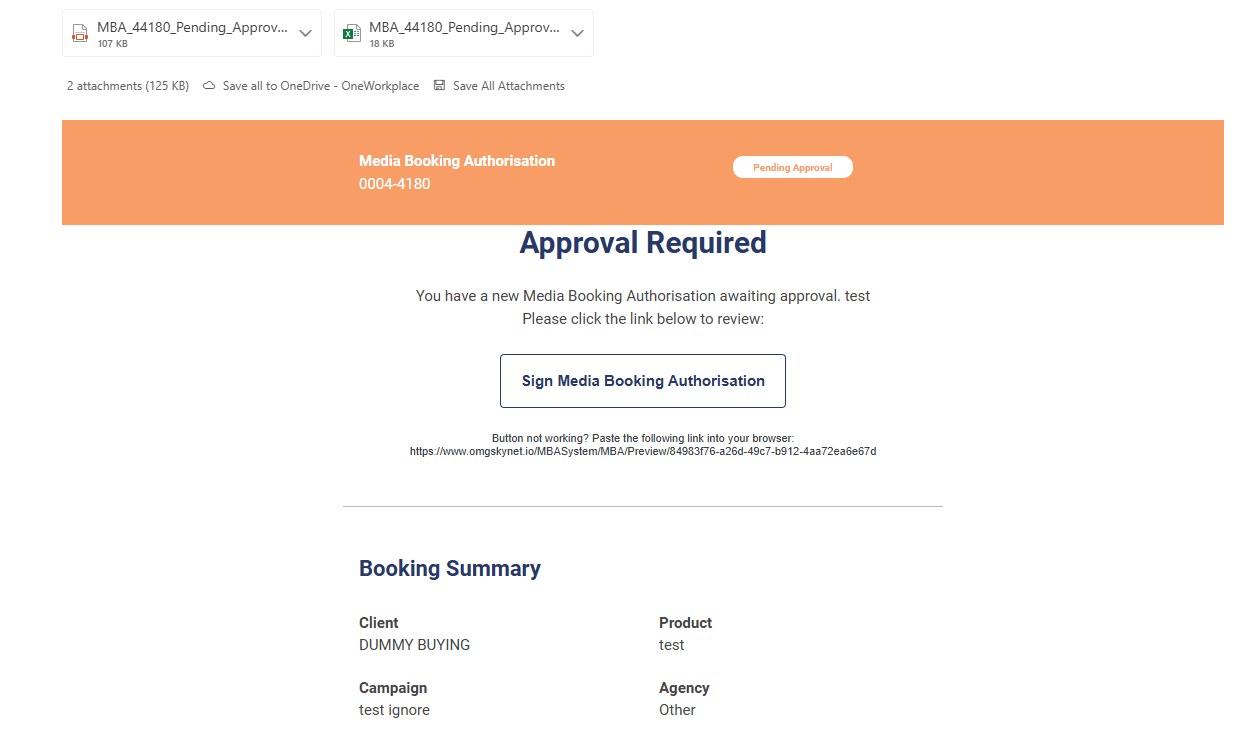
Publishing an MBA will trigger an email notification to be sent to the assigned approvers. The email received will contain a link directing the approver to an online MBA.
- Open Email.
A PDF version of the MBA will attached, along with any external facing supporting documents added during the create phase.
- Click Sign Media Booking Authorisation. Click button to open MBA in browser. URL is provided in email body for copy & pasting into browser directly.
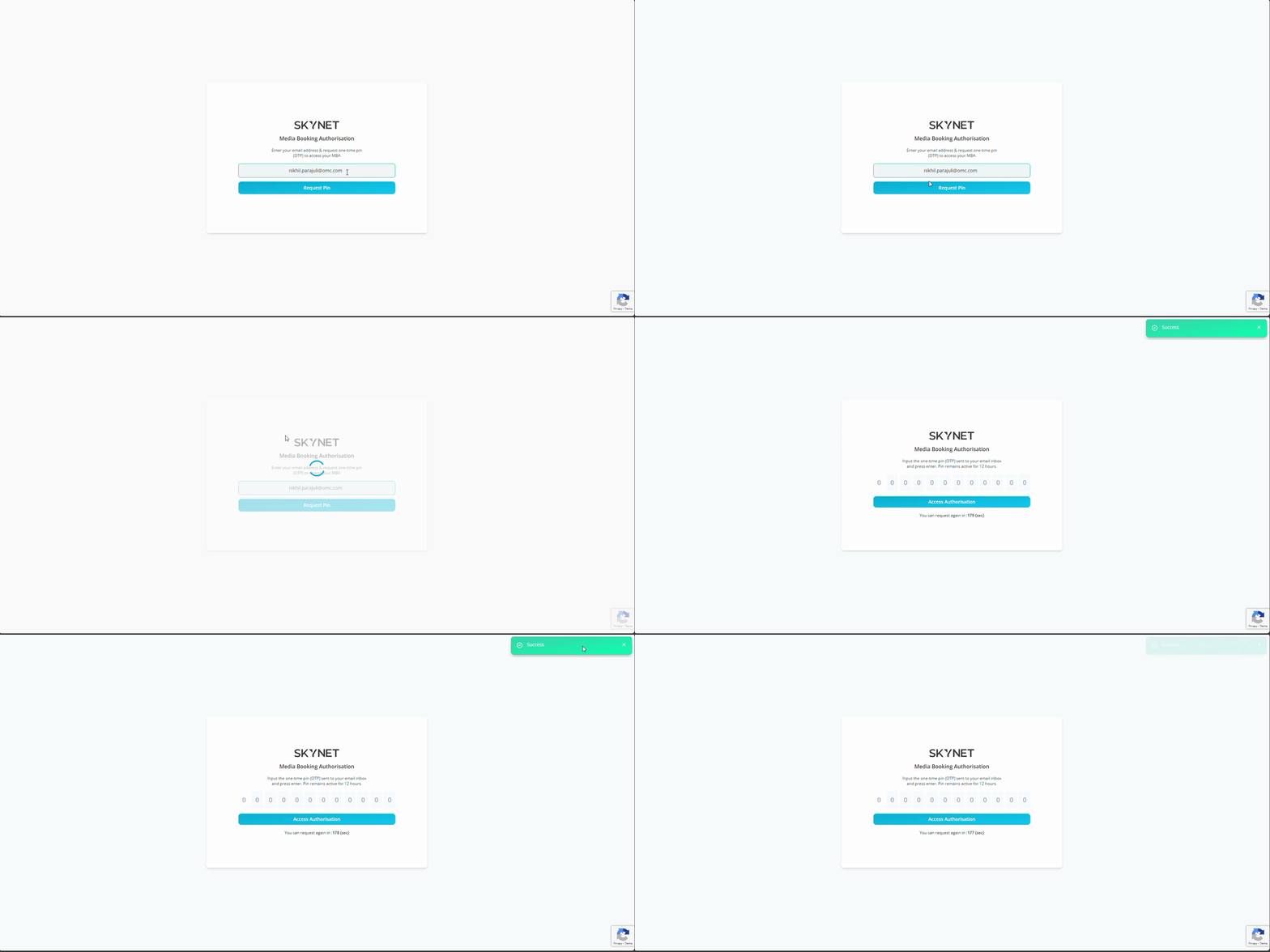
Approver will be met with a verification prompt requesting a One-Time Pin (OTP) to verify they’re approved to access the MBA. Approval is defined by being granted approval access within the publish process.
- Enter Email Address.
- Click Request Pin. An OTP will be sent to the email address submitted if it matches email address assigned when the MBA was published.
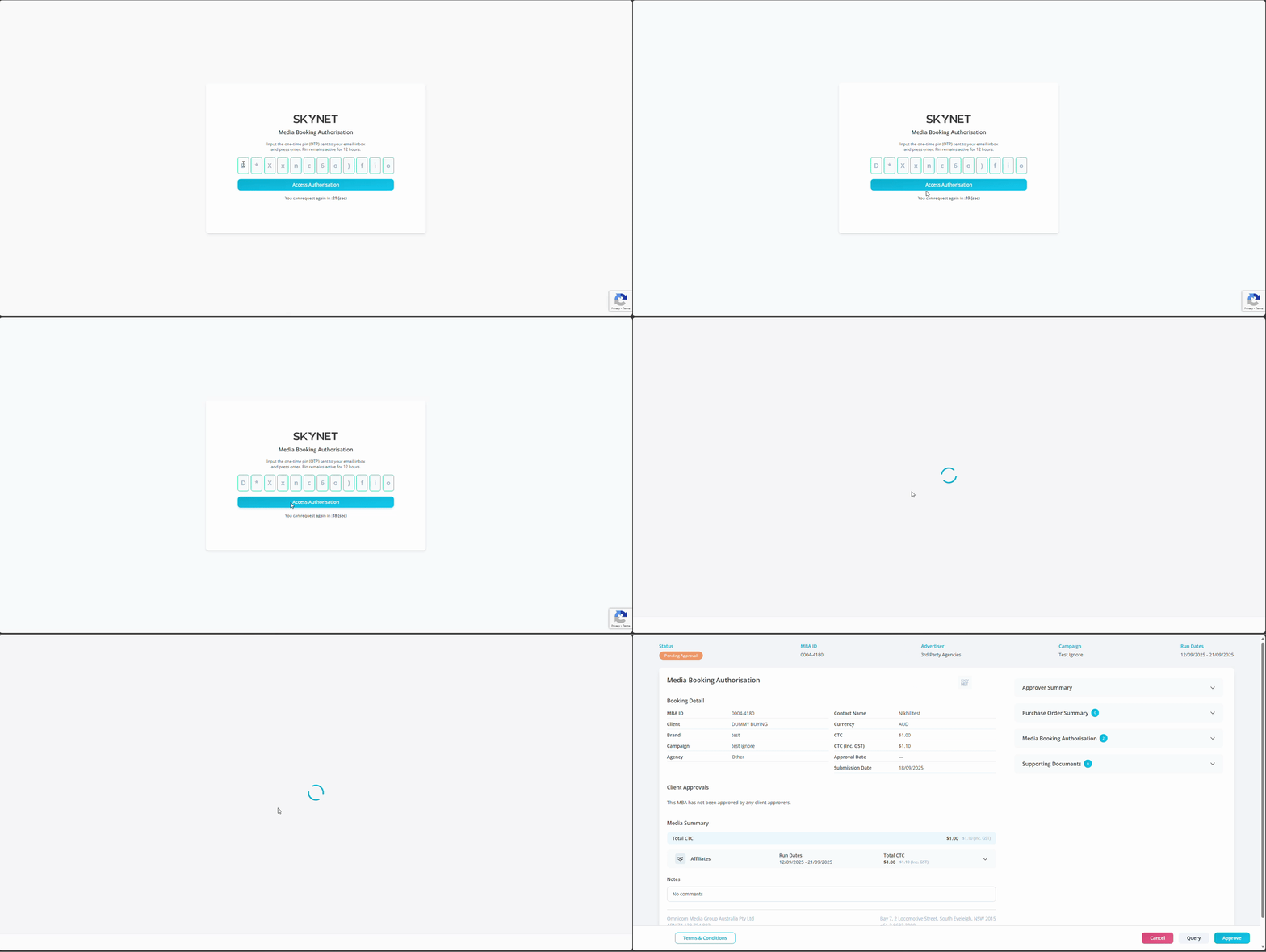
- Open Email. Open Media Booking Authority Access Request email.
- Copy & Paste OTP. Copy & paste OTP from email body and go back to browser window with verification prompt.
- Enter Pin.
- Click Access Authorisation. Approver will be automatically redirected to online MBA.
Approver actions are controlled from the buttons on the footer. Available actions: Print, T&Cs, Cancel, Query & Approve.
| Footer Buttons | Definition |
|---|---|
| Creates print screen of MBA | |
| T&Cs | View T&Cs via a popup window |
| Cancel | This ends the approval workflow and notifies agency users |
| Query | Send a query directly back to agency users |
| Approve | Approve MBA for campaign to proceed |
- Click Approve. Click Approve button on footer.
- Enter Name. Enter full name in popup.
- Enter Job Title. Enter job title in popup.
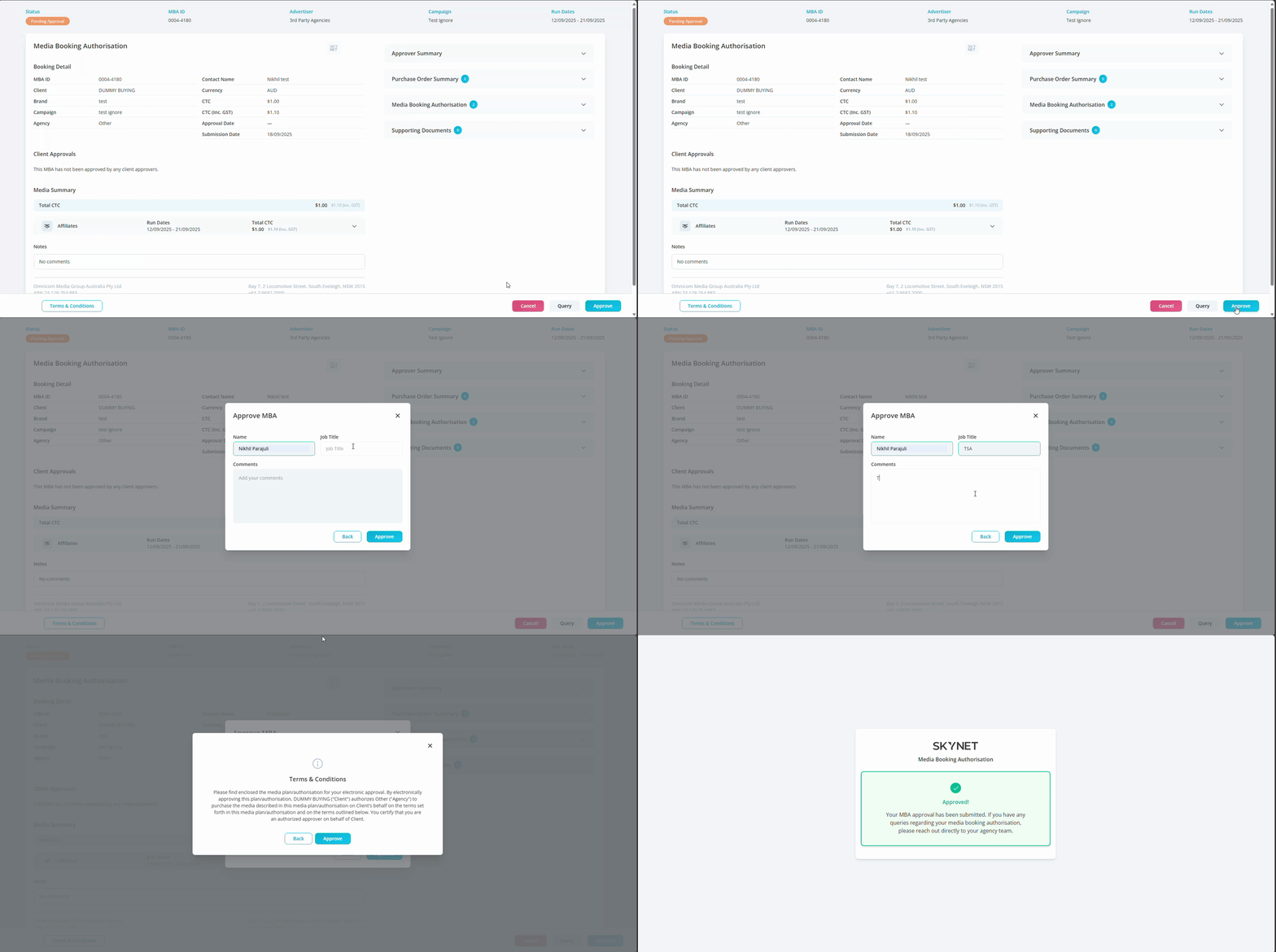
Comments are optional and will retained in the change log, and will be recorded in the body of automated email received by users associated with the MBA.
- Click Approve. Click approve button. This will prompt agency disclosures.
- Click Yes, Approve it! Click Yes, Approve It to finalize approval.
Browser will be redirected to a confirmation page and will alert agency team of the query. An email notification will be sent.to client approver.
Query MBA
- Click Query. Click Query button on footer.
- Enter Comment. Enter brief description of your query,
Comments are mandatory and will retained in the change log, and will be recorded in the body of automated email received by users associated with the MBA. The description needs to be detailed enough for agency users to make updates to the MBA.
- Click Query. Click Query button.
Browser will be redirected to a confirmation page and will alert agency team of the query. An email notification will be sent.to client approver.
Cancel MBA
- Click Cancel. Click Cancel button on footer.
- Enter Comment. Enter brief description of your request to cancel.
Comments are mandatory and will retained in the change log, and will be recorded in the body of automated email received by users associated with the MBA.
- Click Cancel. Click Cancel button.
Browser will be redirected to a confirmation page and will alert agency team of the cancellation. An email notification will be sent.to client approver. This will end the approval process for this campaign.