MBA FAQs
- Applicable to Australia & New Zealand -
MBA FAQs (AUNZ)
When can we retrieve reporting and forecasting data?
As soon as data is being inputted, it can be retrieved. The more detailed the information input, the more detailed the output.
Does data from the MBA tool upload into Signit?
Yes, MBA Tool has a direct integration with the Signit global database and MBA approval data is sent across daily.
Is there a training deck we can share with the client that explains the process?
A client friendly how-to guide is available from your local support team.
The team needs training/ a refresher on how to use the MBA tool. Who is the best contact?
A comprehensive how-to guide and videos are available in portal via the support section. Alternatively, you can go directly to knowledge portal at https://help.omgskynet.io For any other issues, reach out to your local SKYNET support team.
What is the difference between the internal and external MBAs?
External MBA is designed to be sent to an external entity for approval e.g., client approver. The online approval acts as the contract between agency and client. Internal MBA is designed for internal record keeping. This function is available for when a client mandates a separate approval system or document.
How is Media Levy applied to my MBA?
Media levy is auto applied to MBA’s as defined by the client configuration. This will be specific to client code & media type selected. A user can overwrite manually in the application.
How is Agency commission applied to my MBA?
Agency Commission is auto applied to MBA’s as defined by the client configuration. This will be specific to client code & media type selected. A user can overwrite manually in the application.
How is Commission Rebate (%) applied to my MBA?
Commission Rebate (%) is auto applied to MBA’s as defined by the client configuration. This will be specific to client code & media type selected. A user can overwrite manually in the application.
How is service fee applied to my MBA?
Service Fee is auto applied to MBA’s as defined by the client configuration. This will be specific to client code & media type selected. A user can overwrite manually in the application.
How are other fees applied to my MBA?
All other fee’s, including Spot Monitoring, Production and Verification will need to be applied manually in the application. All fee’s can be applied as a % of net media, % of gross media or as a fee amount.
I don’t want/need to allocate a product code. Is this field mandatory?
No, the product code field is optional and can be left blank.
My costs are not adding up
Check the costs against your media plan or a copy of a previous client invoice. It’s worth noting that that the amount included as part of the commission rebate is the % given back to the client, not the % we retain as an agency.
Which documents can I attach to my MBA?
Attaching supporting documents when creating an MBA will be sent alongside the MBA. This would typically be the media plan.
How can I add a Purchase Order (PO) to the MBA so it’s visible to the client approver?
Use the additional comments section in the MBA summary, or external description in media line-item section.
I have a Purchase Order (PO) by media type. Do I need to create an MBA per PO?
No, you can apply a PO at the media line-item level. Please ensure you don’t include a PO in the campaign overview section as this will disable the fields.
I don’t receive a Purchase Order (PO) from the client until after an MBA is signed. Will adding it post approval trigger a status change?
No, the PO field is not visible to the client and can be added at any time without the need for a re-approval. PO documents are internal facing only and will not trigger a re-approval.
I can’t find a team member in the staff list to CC them when publishing MBA
A user not having access would indicate they do not have access to that client in MBA tool. Log a ticket with the Skynet helpdesk to grant them access.
My MBA is set up with a sequential approval to allow clients at different seniority levels to approve – will everyone be kept in the loop as approvals come through at each level?
Yes, everyone the MBA is sent to/CC’d will be kept in the loop as the MBA moves through the approval chain.
I need to remove a client from the approval list, but the MBA has already been sent for approval. What are next steps?
You can remove/add clients to an MBA after it has been published at any time. This will constitute a change and require the MBA to be republished for approval.
I need to add another client to the approver list, but the MBA has already been sent for approval to other clients. What are next steps?
You can remove/add clients to an MBA after it has been published at any time. This will constitute a change and require the MBA to be republished for approval.
My client has said they have not received the MBA to view/approve. Why has this happened?
Please check the client’s email address was entered correctly when publishing the MBA and ask the client to check their junk folder & mark the email address as ‘safe’. You can copy the pin from the create page and send directly in instances where the client doesn’t have access to their emails.
I have already sent the MBA for approval, but the client is only able to approve one media type at this stage. Can I make changes to my existing MBA, or do I need to cancel it and create a new one?
A user would need to delete the media types that couldn’t be approved and republish. A new MBA would not need to be created.
My client is trying to view/approve the MBA but upon requesting a security code and entering it, they are advised the code has expired?
Check the email addresses clearly match (between the email sent and the email requesting the code), that the MBA has not been approved by another (there could be multiple clients on the approval email) and that the MBA has not expired (MBAs do expire if not addressed). If all of these are covered off, please contact the Skynet helpdesk for further assistance.
My client has approved an MBA, but it now needs to be updated with changes. Should I cancel and create a new MBA?
You can update the existing MBA. Once changed, the MBA would need to be published and the approval process would start again. All changes are logged in the activity log.
Will the signed MBAs still need to be saved to a local folder?
No, MBAs are stored in the MBA platform and are not deleted/removed.
Do approved MBAs expire in the platform?
No, MBAs are stored in SKYNET and cannot be deleted. A user can archive old MBAs.
Can we see previous versions of MBAs if we are making changes?
Previously signed MBA versions are stored in the platform – this includes a change log to give additional context with approval journey visualised.
Why can’t I delete my MBA?
An MBA cannot be deleted once it has been published. You can cancel your MBA at any point.
What is the difference between Cancelled & Archived?
Cancelled is a status, whilst Archived is a state. Cancelling an MBA cancels the media booking. Archiving is a function to remove finished bookings from your view. Archiving is only available for cancelled or approved MBAs and can be reverted to active at any point. Reporting is unaffected.
My MBA is setup with detailed breakdown of media cost, commission, agency fees and other fees for the various media types but my client does not require the detail shown on the MBA. Can I hide the level of detail?
These details can be easily hidden by using the "Aggregate Cost" feature under the Client Visualisation section at the summary level of your MBA. This can be updated and enabled/disabled at anytime to suit client requirements to showcase detailed breakdown (net cost, gross cost, media levy, agency fee, tech fee, ad serving fee, verification fee, data fee, production fee etc.)
Can we see historical approved MBAs for non-existing clients within our business?
If the client code is listed as inactive within our billing system, the client will be disabled automatically within the Skynet client database. Therefore the user will not be able to create, edit, archive and preview existing entries in the MBA listing page. However, these MBAs will be available to preview and download within the MBA database.
- Applicable to New Zealand Only -
MBA FAQs (NZ only)
I can’t see my Pegasus client within the agency I work on. How can I get access?
By default, you will be given access to your agency branch and for new clients onboarded into Pegasus this is automatically synced into SKYNET and do not need to request for access. If you work across multiple entities (e.g. OMG, Dynamo, Rocket & OMNET) then please log a ticket with the Skynet helpdesk team with relevant details: https://flightdeck.atlassian.net/servicedesk/customer/portal/25
My Pegasus Primary Product Code does not show up for the selected Pegasus Client Code, what should I do?
All Pegasus Product Codes are synched into SKYNET, if there isn’t a specific Brand/Product code to be selected this field is optional and can be left blank as [00]. Alternatively, you can enter a different label under the field called Brand.
How can I see all the available Pegasus Media Plan details for my clients?
Navigate and use the Pegasus Plans app to view all available media plan numbers, plan name, client name/code, brand name/code, status, start & end date. Users can apply filters and export as an excel file where required.
My Existing Pegasus Media Plan does not show up for the selected Pegasus Client Code, what should I do?
All ‘Active’ Media Plans are synced to SKYNET every 5 minutes, if someone else in your team have just created the plan code then this will appear momentarily. Alternatively, you might want to check with your team on which Pegasus Client Code the media plan is setup for or check if the media plan code has been deleted/suspended.
What are the mandatory fields required for to push and create a new media plan in the MBA Tool in Pegasus?
You will need the following fields filled in your MBA Summary Page; Primary Client Code, Primary Product Code (Optional), Campaign Name, Start Date and End Date. By selecting the Create Pegasus Media Plan tickbox, this will auto-generate the next available plan code and users can add a suffix (e.g. Plan 1000TV, 1000PR, 1000SE)
The Create Pegasus Media Plan tickbox is disabled and I can’t create a new media plan in the MBA Tool?
The Pegasus integration feature to create a new media plan codes only works for new MBAs using the “Create MBA” button. You cannot create Pegasus Media Plan codes when editing or cloning existing MBAs but you will be able to edit/select existing Pegasus Media Plan.
Can fees such as ASA Media Levy Fee, Commission Rebate, Service Fee, Tech Fee, GST Fee etc. be auto applied and aligned to my client contract and/or Pegasus Client Fee configuration?
These fees can be configured within the Client Management tool in SKYNET upon request. These can be configured aligned to the specific Pegasus client code & master media types. Only admin users can overwrite and apply the appropriate fees at a client code level. The user can overwrite manually in the application while creating/editing the MBA.
| Fee Type | Definition |
| GST Applicable % | Goods and Services Tax (GST) is a value-added tax or consumption tax for goods and services consumed in New Zealand. This is charged at a rate of 15% by GST-registered companies and is added to the price of most goods and services supplied. |
| Media Levy % | The levy is applied to the gross media cost of all advertising communications, regardless of the media type. The levy pays for the industry's self-regulatory system run by the ASA in New Zealand. The levy is set as 0.065% on gross media expenditure. That's just $650 for every $1 million spent. |
| Agency Commission % | % NET/GROSS agency commission can be applied based on the Master Media Types (e.g. Television, Print, Radio, Digital Direct). The default value is set to 0% if not defined.
|
| Commission Rebate % | % commission rebate can be applied based on the Master Media Types (e.g. Television, Print, Radio, Digital Direct). The default value is set to 0% if not defined.
|
My ASA fee calculation is throwing off and not calculating to match against my planned media schedule. The ASA is calculated off GROSS, however we enter NET on our Standard MBAs.
The Media Levy calculation in GROSS is intentional and this is consistent across AUNZ. MBA Tool calculates media levy the same way as Pegasus ASA Levy Fee and will always a defaulted rate of 0.065 % applied on the Gross Media in New Zealand.
There may be occasions where different media types or suppliers have different commission rebates, therefore it can sometimes cause confusion upon calculating the media levy (ASA).
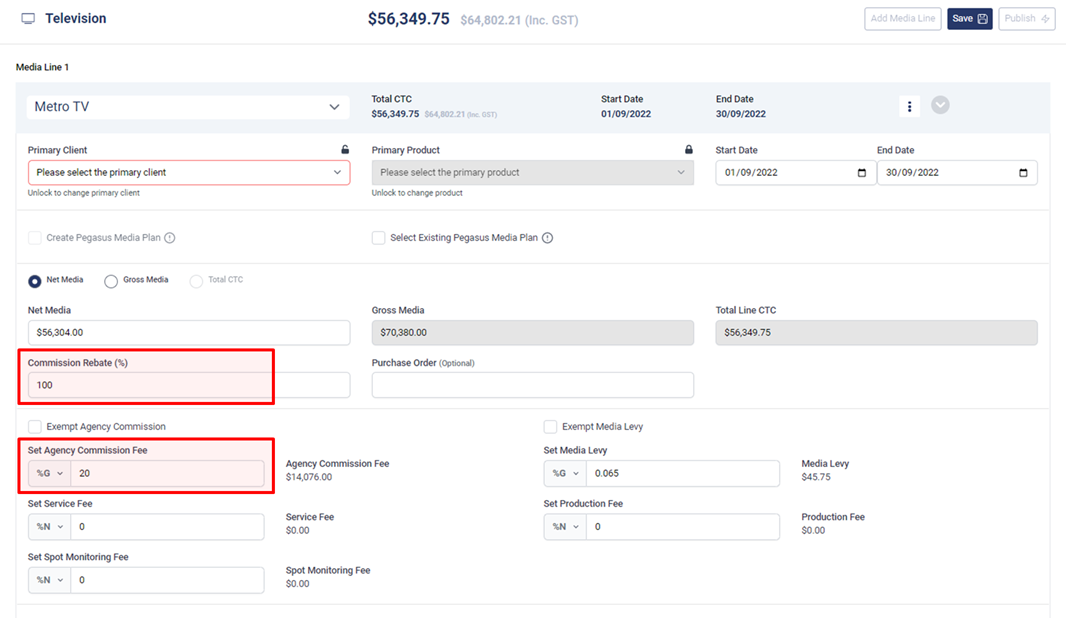
Assuming your client have commission rebate on the different offline media types (e.g. Television, Outdoor, Print), you can achieve the calculation on gross with the below steps;
- Apply Set Agency Commission Fee at a fixed % agency comms (e.g. 20% on gross)
- Apply Commission Rebate (%) to 100% (e.g. 100% comm rebate means that we apply 20% calculation as an incremental amount on Net Media)
Example – Calculate 20% Gross Commission on NET Media
Below formula & screenshot shows 20% Gross Comms is calculated at $14,076 against NET Media of $56,304.
Gross Media = Net Media ÷ 0.80
(e.g. $70,380 = $56,304 ÷ 0.80)
Agency Commission Fee = (NET Media ÷ 0.80) - NET Media
(e.g. $14,076 = [$56,304 ÷ 0.80] - $56,304)