
Create MBA Express
Express MBA offer a quick build alterative to a Standard MBA. This function remove's the requirement to add media line items and instead using an attachment as the document source for client approval.
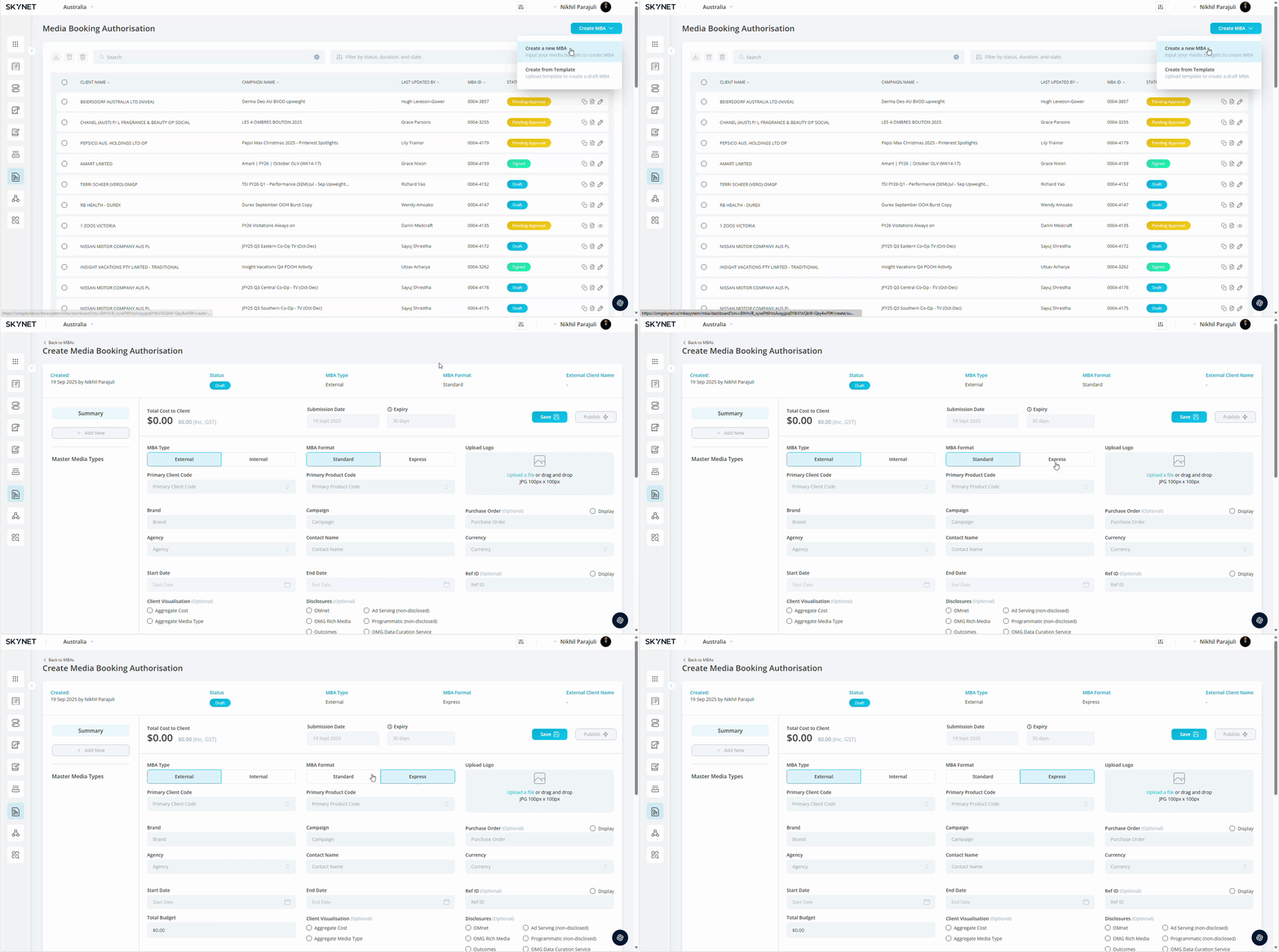
- Select MBA Type. This will be defaulted to External on new MBAs.
| MBA Type | Definition |
| External | Designed to be sent to an external entity for approval e.g. agency client |
| Internal | Designed for internal record keeping. To be used when a 3P process is mandated by client |
- Select MBA Format. Toggle to Express.
| MBA Format | Definition |
| Standard | Requires media breakdown to be added to publish |
| Express | Requires total cost to client budget & support document to approve* |
*Use of Express MBAs remove ability to report & forecast at media type level
- Upload Logo. Add your client logo by clicking within the rectangle and selecting a save image, or drag & drop an image into the rectangle. Your successfully uploaded image will display on your client MBA. 100px x 100px is optimal size.
- Select Primary Client Code. Select from dropdown list. List options will be limited to client codes you can access.
- Select Primary Product Code. Select from dropdown list. List options will be limited to the product codes associated with the client code. This field is optional.
- Add Brand. Add the brand or product the campaign is advertising. This field is visible on client MBA. Examples: McDonald's, Pepsi Max, etc.
- Add Campaign. Add the campaign name. This field is visible on client MBA.
- Add Purchase Order. Add the campaign purchase order (PO). This field isn’t visible on client MBA. Assinging a PO at summary level will assign across all media lines. PO can be applied at media line level. Updating this field will not trigger a status change. Field is optional.
- Select Agency. Select from dropdown list. Field will be auto populated from client selection.
- Add Contact Name. Add the agency contact overseeing the MBA approval. Field will be auto populated with the name of the user creating the MBA.
- Select Currency. Select from dropdown list. Field will be auto populated from client selection.
- Select Start Date & End Date. Select from date range.
- Add Plan ID. Add the corresponding media plan ID. Field is optional.
- Add Total Cost to Client. Add Cost to Client budget (excluding GST).
- Select Disclosures. Select the additional disclosures you want applied to your MBA. All MBAs will include OMG’s disclosure terms by default.
Additional disclosure options: OMnet, OMG Rich media, Ad Serving (non-disclosed), Programmatic (non-disclosed)
- Add Additional Commentary. Add additional commentary within the comment box. Layout customisation is available using the options within the header.
- Add Documents to Approve. Add document needing client approval by clicking within the rectangle and selecting a save image, or drag & drop an image into the rectangle. This will be an external facing document sent alongside your MBA. Formats supported: xlxs, pdf, doc, pptx
- Add Supporting Documents. Add supporting documents by clicking within the rectangle and selecting a save image, or drag & drop an image into the rectangle. This will be an external facing document sent alongside your MBA. This is an optional field. Formats supported: xlxs, pdf, doc, pptx
- Add Purchase Order Documents. Add purchase order documents by clicking within the rectangle and selecting a save image, or drag & drop an image into the rectangle.. This will be an internal document received from the client to be housed alongside MBA. This is an optional field. Attaching documents will not affect MBA status. Formats supported: xlxs, pdf, doc, pptx
- Press Save.