
Create Custom Fields
Creating and Managing Your Custom Fields
To effectively manage and create custom fields in your templates, navigate to the “Fields” section on the right-side navigation panel. From the side panel, select the Custom Field tab, where you can access all custom fields you’ve created, as well as public custom fields.
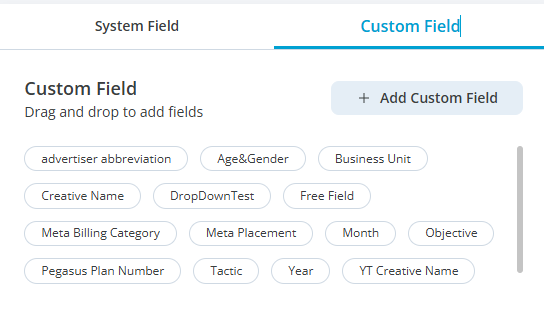

How to Manage Custom Fields
- Add a New Custom Field
Click the Add Custom Field button within the Custom Field tab to begin creating a new custom field. - Open the Custom Field Modal
A modal window will appear, prompting you to fill in the necessary details for your new custom field. - Fill in the Field Details
- Name: Enter a suitable name for your custom field.
- Description: (Optional) Provide a description for clarity.
- Field Type: Select a field type from the options below:
- Free Field
- Choose “Free Field” as the option.
- Select the data format:
- Number: Only numeric inputs are allowed.
- Date: A date picker will be provided while building the taxonomy.
- Currency: Only three-character inputs are accepted, eg: AUD, USD, etc.
- Text: Allows all characters, including numbers and special characters.
- List Field
- Choose “List Field” as the option.
- Select the data format:
- Numbers: Only numeric options are allowed, with abbreviations set as either number or text.
- Currency: Only three alphabetic characters may be typed for option entries and abbreviations.
- Text: All characters can be used in both option and abbreviation fields.
- Add options using the Add Option blue link to include additional entries and their abbreviations as needed (refer to Setting Field Condition, 6).
- Choose the selection type for the list field:
- Single: Allows for one selection only when creating the taxonomy.
- Multi: Permits multiple selections when creating the taxonomy.
- Aggregated Field
- Select “Aggregated” as the option.
- Choose your desired delimiter from the Delimiter dropdown for aggregating these fields.
- The selected delimiter will appear in the Field Options section, allowing you to choose from multiple fields.
- Click on the field option to view and select all available fields for aggregation.
- Free Field
- Finalize Creation
Once you have filled in all the details and made your selections, click on the Apply button to create the custom field successfully.