
MBA - Purchase Order
Short Tutorial Video on MBA Purchase Order
- Creating a purchase order for an MBA is optional.
- Users can choose whether to display the purchase order to the client by selecting the checkbox located above the field.
- If the checkbox is selected, the value entered in the purchase order field will be visible to the client during MBA approval. If left unchecked, the value will remain hidden from the client.
For Approved MBA
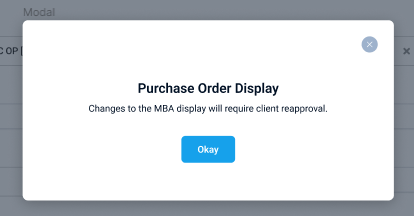
- If the MBA has already been approved by the client and the user decides to display the PO number, they can do so by simply selecting the checkbox and saving the MBA. However, this action will change the campaign’s status from Approved to Draft
- When the PO checkbox is selected, a confirmation popup will appear with the message:
“Changes to the MBA display will require client reapproval.” - If the user confirms, the status of the MBA will be updated to Draft, and the reapproval process can begin once the MBA is saved.
- Note: Modifying the PO field value alone will not affect the MBA’s status. Only enabling the option to display the PO to the client will trigger the status change to Draft.
Purchase Order for Master Media Line items
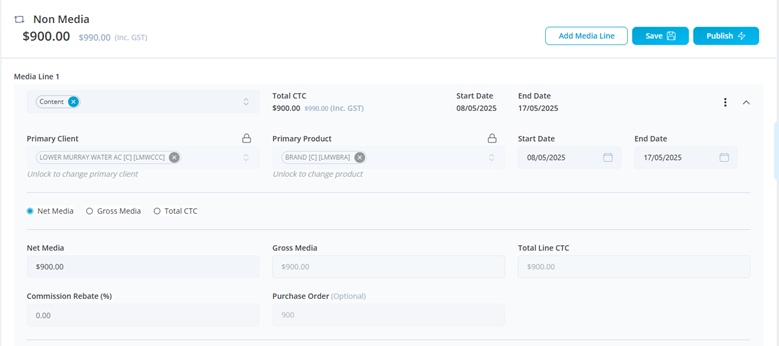
- When a Purchase Order value is added to the MBA Summary page, it will automatically be applied to all line items. In this case, the Purchase Order field for each line item will be disabled and cannot be edited by the user.
However, if no Purchase Order value is entered on the MBA Summary page, the field will remain editable within each individual media line item.
In Summary
- PO entry is optional and can be displayed to clients via a checkbox.
- Enabling the checkbox after client approval prompts reapproval and changes MBA status to Draft.
- Editing the PO value alone doesn’t affect the status—only displaying it does.
- If PO is added on the Summary page, it auto-fills all line items and becomes non-editable.
- If not added on the Summary page, PO can be edited individually in line items.