
BEOOH Overview
Briefing Engine OOH (BEOOH) allows users to create & send outdoor multiple trading briefs directly to vendor partners. A user can create multiple briefs in minutes & send directly to vendor partners from the portal, safe in the knowledge the system tracks & stores all campaign briefs centrally in the platform. You can access BEOOH by clicking on the application card on the homepage or via the side panel navigation menu.
On navigating to the BEOOH, you will access your campaign list view. By default 25 campaigns will be visible in your view, at the bottom of the page you can simply click ‘Load More’ to show more within your search and filter criteria.
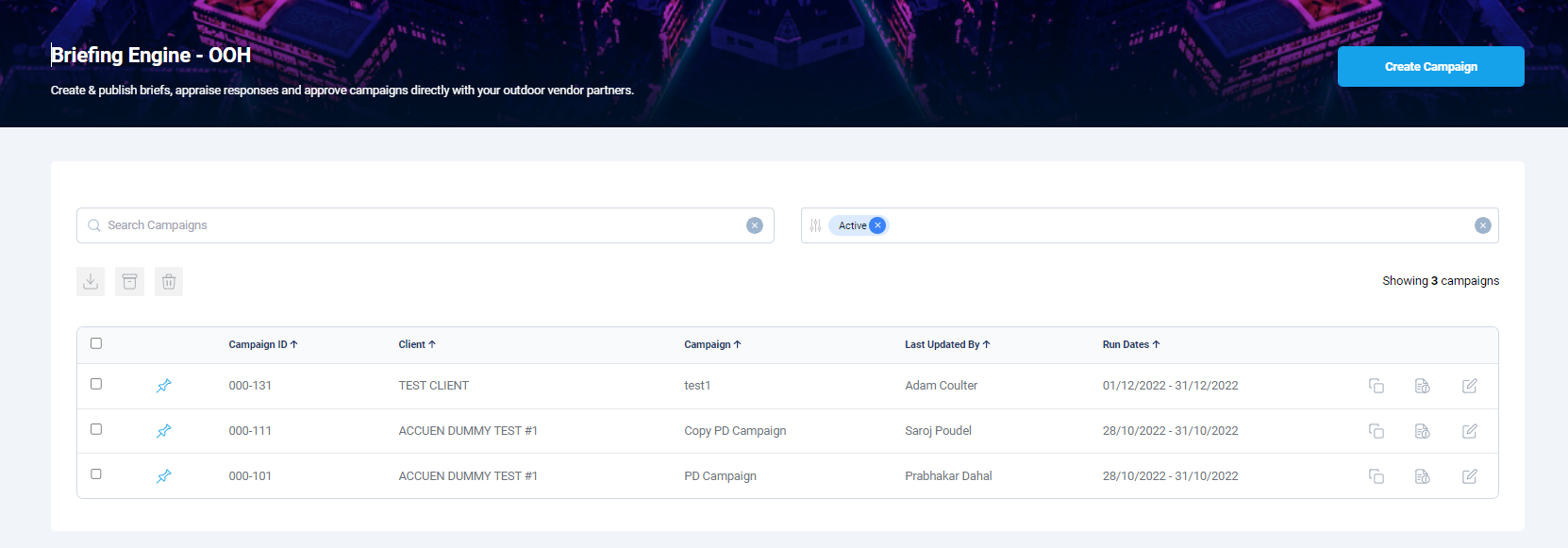
Campaign Listing
At the top of the page, you will find two functions to narrow your visible bookings. The first is an open search bar. This allows a user to search by Campaign Name.
A user can filter further using the filter bar located on the top right of the page by Status, State or Date Range. Status reflects the approval status of your MBA based on your journey in the workflow. State reflects the active state. Only a a campaign where all briefs are in draft mode can be deleted.
| Filter Options | Selection Options |
|---|---|
| Status | Draft, Pending Approval, Signed, Cancelled, Queried |
| State | Active, Archived |
| Duration | Custom, Today, Yesterday, Last 7 days, Last 14 days, Last 30 days, Last 3 Months, Month to Date, Quarter to Date, Year to Date, Previous Week, Previous Month, Previous Quarter |
Below the search bar are 3 icons for making bulk action items. On selecting 1 or more campaigns from your listing, these icons will be enabled for user selection.
| Bulk Action Icons | Selection Options |
|---|---|
| Download | Applicable to all campaigns |
| Archive | Applicable to campaigns where all briefs are in cancelled or sent status |
| Delete | Applicable to campaigns where all briefs are in Draft status only |
Within the list table, you will see the Client Name, Campaign, Last Updated By, and Run Dates for all activity under clients assigned to your user login. Each column is sortable via the header. The pin icon to the left of client name allows you to lock your campaign to the top of your table view. Click the pin to remove.
At the end of each row are action buttons specific to the campaign selected. This is where a user can access an existing campaign for editing or monitoring. Starting left to right, the 3 action buttons are Duplicate, Overview & Edit.
The Duplicate function will take the existing briefs and targeting applied and create a copy. This will open in the campaign overview page, with all briefs in draft status. Any existing history from the original campaign will not be applied or visible in the duplicate campaign.
The Overview function gives user a summary snapshot of the campaign. On selecting, a sidebar will open containing a campaign summary, cost breakdown, vendor details and any attachment documents. This allows a user to see top-level details without the need of entering the edit function. To see action icon definitions, please go to ‘Create Campaign’ page.
In the upper right section of the listing page is a ‘Create Campaign’ button. This will take you to the Campaign Overview page to start building your campaign.