
Campaign Manager - Purchase Order
Short Tutorial Video on Campaign Manager - Purchase Order
- The Purchase Order field in Campaign Manager is optional.
- Once the campaign has been created, users can navigate to the MBA tab where an Edit icon is available next to the Purchase Order field.
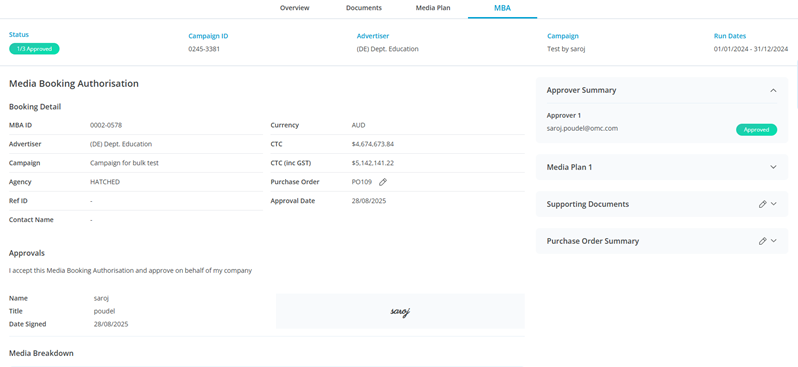
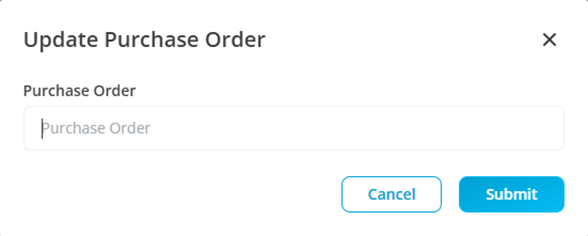
- Clicking the Edit icon opens a popup modal with:
- A text input for entering or updating the Purchase Order (accepts alphanumeric values).
- A Submit button to save changes.
- A Cancel button to discard changes.
- On clicking Submit from the Popup, the new Purchase Order is saved and reflected in:
- The campaign.
- All associated line items.
- The associated MBA in the MBA tool.
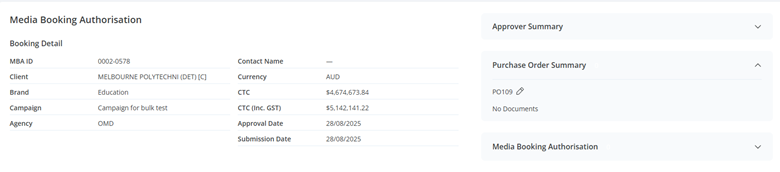
- Purchase Orders can also be updated directly from the MBA tool. Updates made there will be sync back to Campaign Manager.
- Updating the Purchase Order does not change the status of the Campaign or the MBA.
- For campaigns with multiple media plans, separate MBAs are created. Purchase Orders must be updated individually for each MBA.
In Summary
- Users can add or update Purchase Orders from the MBA tab, Trader Preview, or directly via the MBA tool.
- Updates are applied consistently across the campaign, line items, and MBA.
- Each MBA requires its own Purchase Order update when multiple media plans are involved.
- Updating the Purchase Order does not impact campaign or MBA status.