
Publish MBA
Throughout the creation phase your MBA will remain in draft mode until published. Publishing is finalised when an MBA is sent externally for approval. Once published an MBA cannot be deleted.
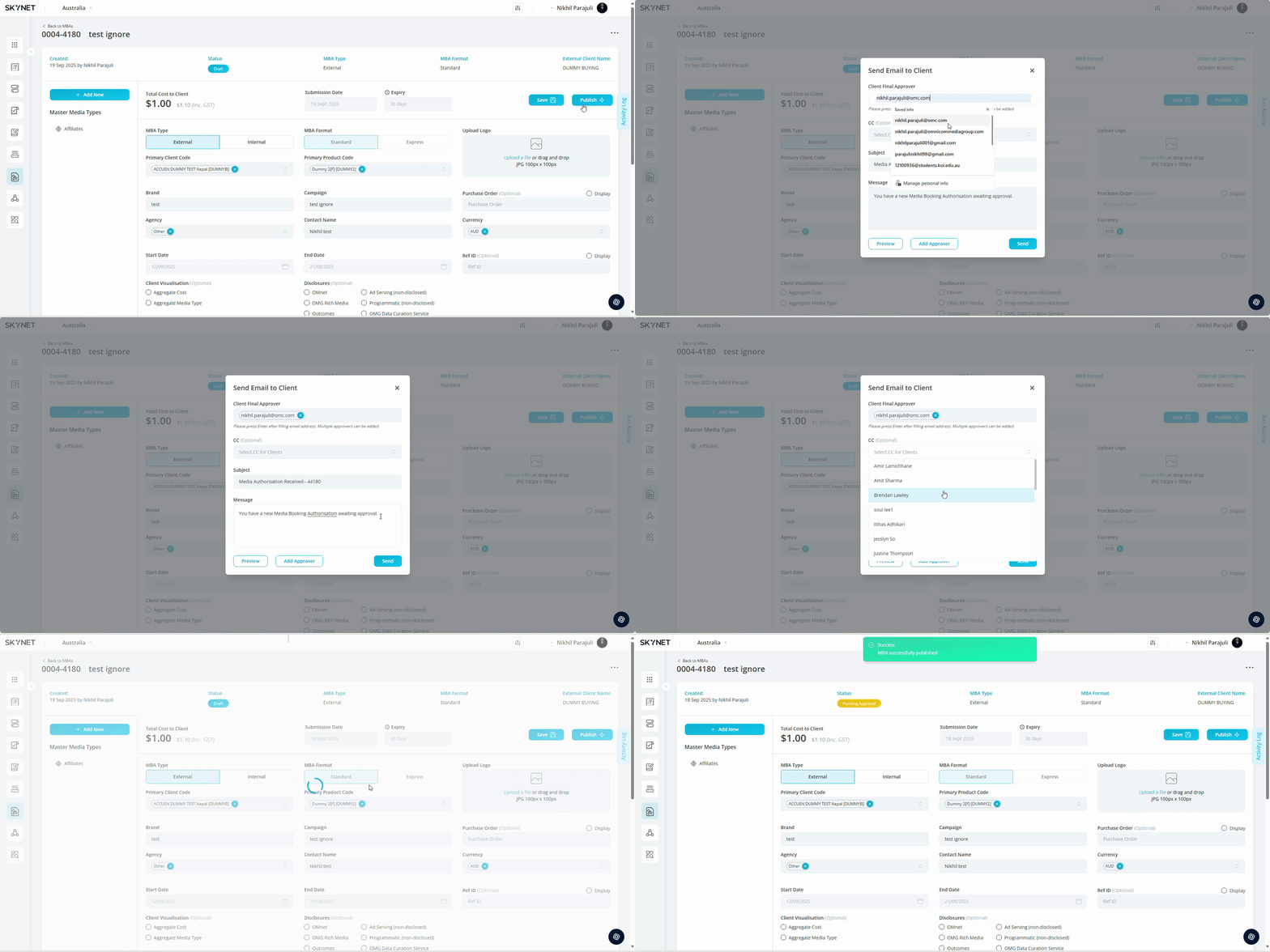
- Click Publish. Click publish from the header, footer or action bar to initiate the send for approval popup. You can exit at anytime by clicking the exit icon and the status will remain in draft mode.
You have the option to preview your MBA before sending your MBA by clicking on the preview button. A browser version of the MBA will open in a new tab and is identical to the version your client will receive.
- Add Client Final Approver. Type in the email address of the client approver(s) you wish to receive the MBA. Multiple email addresses can be added, however, only one approver is required to sign the MBA.
CC is an optional field and will list all users with access to the client. Once added, cc’ed users will receive automated email notifications. Any users with client access will be able to see the MBA within the list view.
Add additional approvers in a sequential sequence using the Add Approver button located next to the preview button at the bottom of the popup. Multiple email addresses can be added at each sequence level, however, only one approver is required to sign the MBA. Additional levels can be removed at anytime by selecting the delete icon at the end of the input field.
Subject & Message are populated but can be amended by clicking into the fields and updating the copy. This will be reflected in the automated email received from the approvers.
- Click Send.