MBA Overview
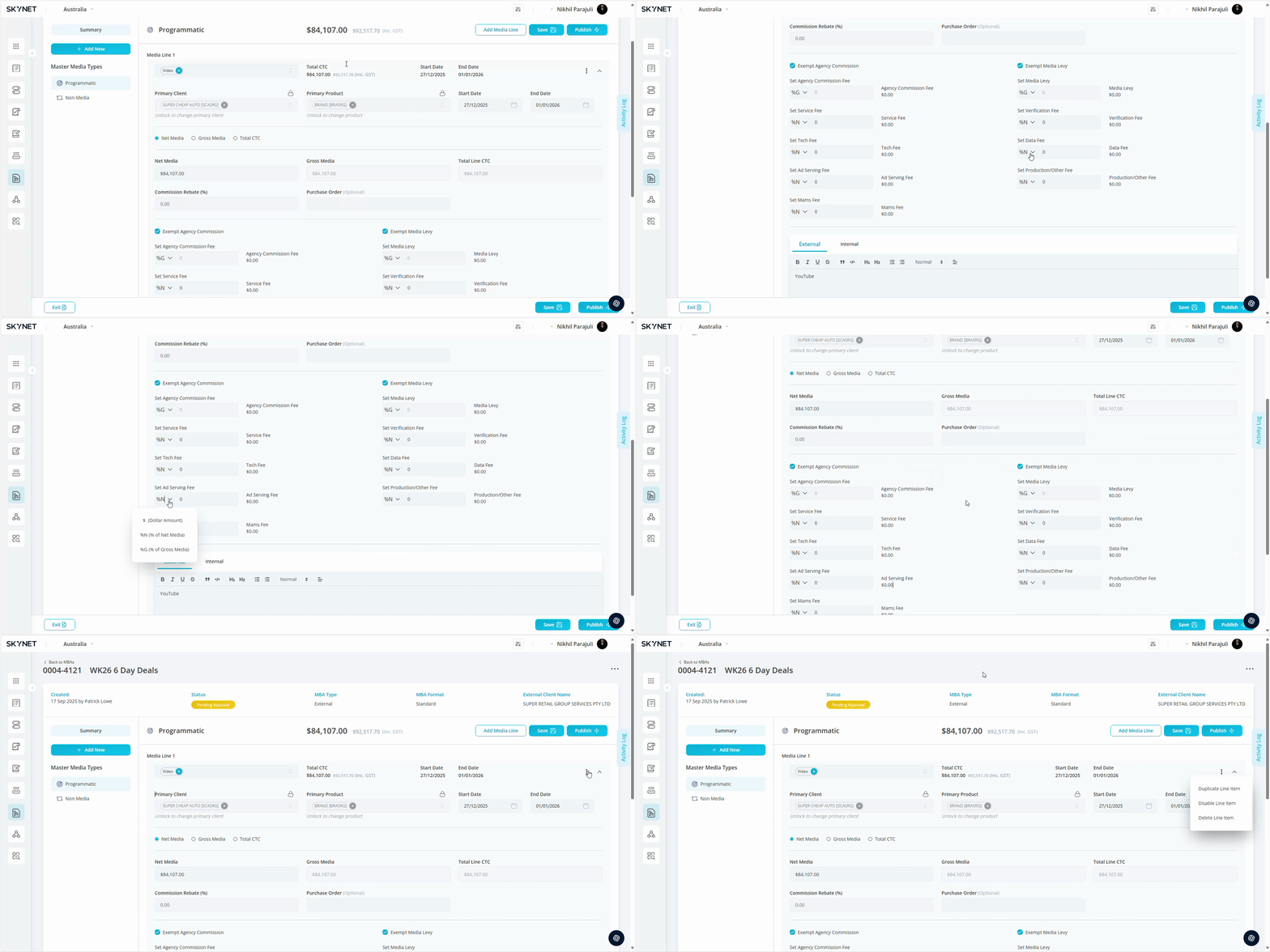
MBA Tool allows users to create, send & receive client online media booking authorisations. MBA Tool replaces the need for paper bookings and records a full digital audit trail. You can access MBA Tool by clicking on the application card or the side panel navigation menu.
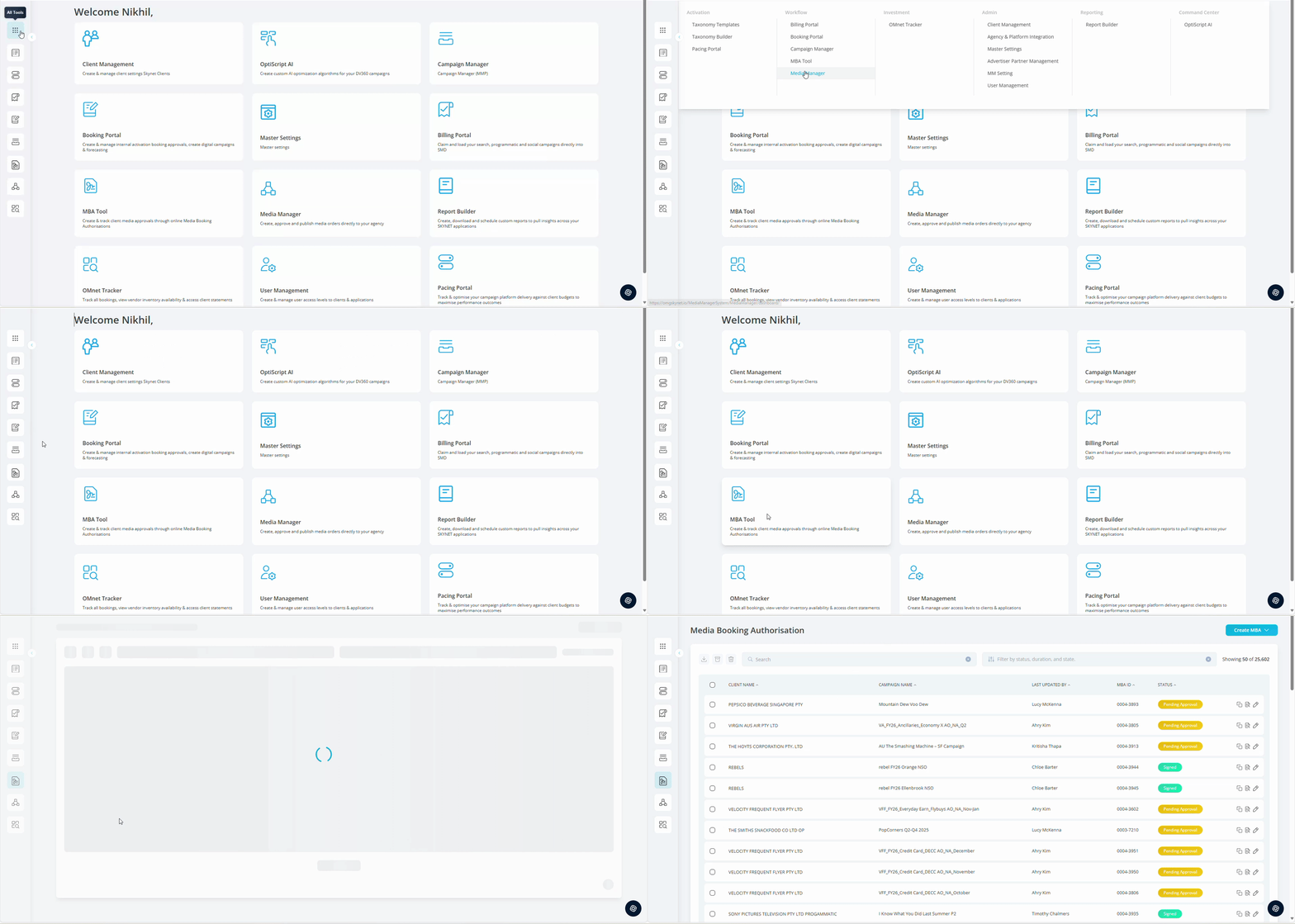
On navigating to the MBA tool, you will access your MBA listing view. By default 25 MBAs will be visible in your view, at the bottom of the page you can simply click ‘Load More’ to show more within your search and filter criteria.
Listing Page
At the top of the page, you will find two functions to narrow your visible bookings. The first is an open search bar. This allows a user to search by MBA ID, Campaign Name, Client or Username.
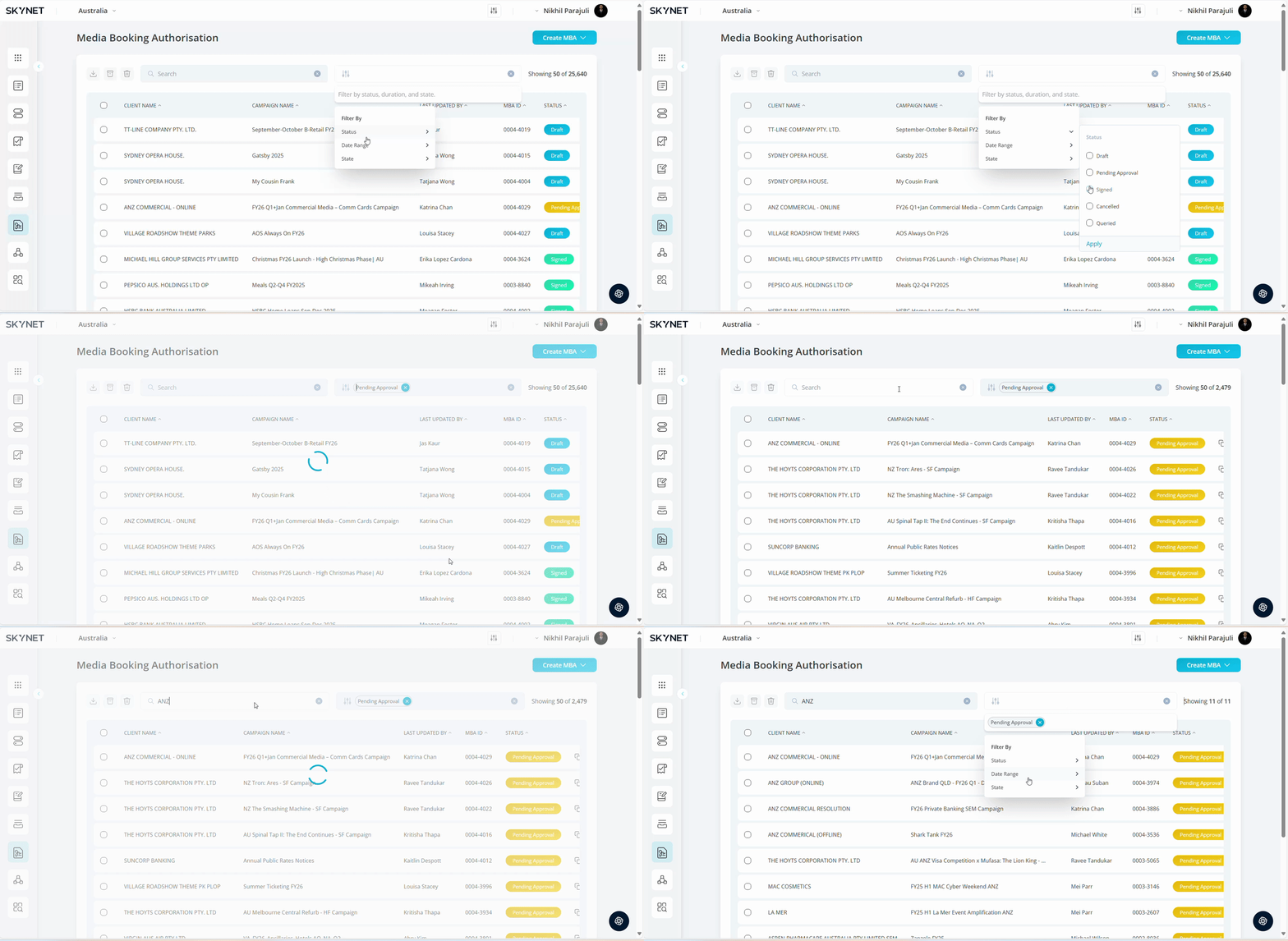
A user can filter further using the filter bar located on the top right of the page by Status, State or Date Range. Status reflects the approval status of your MBA based on your journey in the workflow. State reflects the active state. Only a Cancelled or Approved MBA can be archived.
| Filter Options | Selection Options |
|---|---|
| Status | Draft, Pending Approval, Signed, Cancelled, Queried |
| State | Active, Archived |
| Duration | Custom, Today, Yesterday, Last 7 days, Last 14 days, Last 30 days, Last 3 Months, Month to Date, Quarter to Date, Year to Date, Previous Week, Previous Month, Previous Quarter |
Below the search bar are 3 icons for making bulk actions. On selecting 1 or more MBAs from your listing, these icons will be enabled for user selection.
| Bulk Action Icons | Selection Options |
|---|---|
| Download | Applicable to all MBA status |
| Archive | Applicable to Cancelled or Signed status |
| Delete | Applicable to Draft status only |
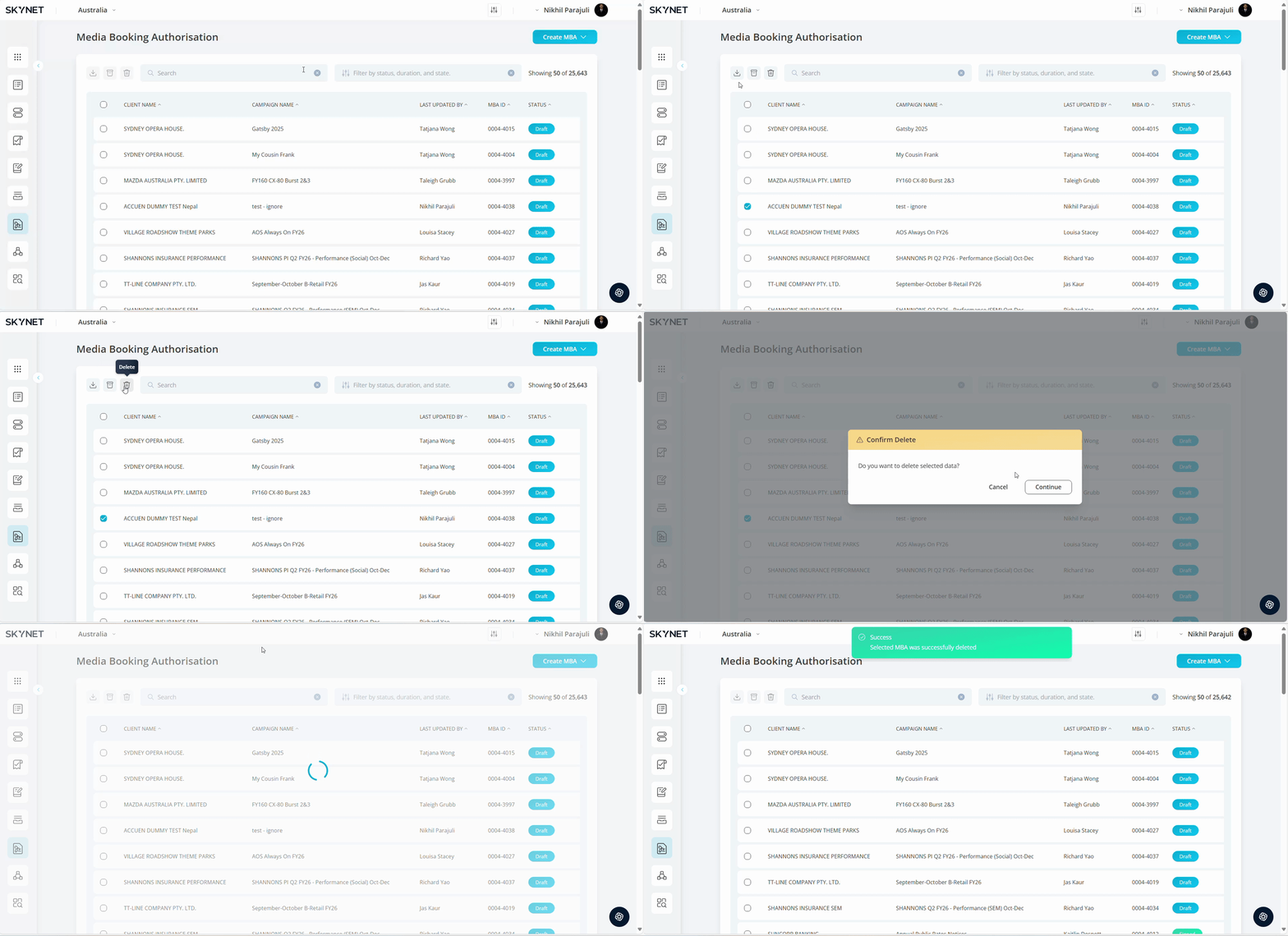
Within the listing, you will see the Client Name, Campaign Name, Last Updated By, MBA ID and Status of MBA all listed in the table. Each column is sortable via the header.
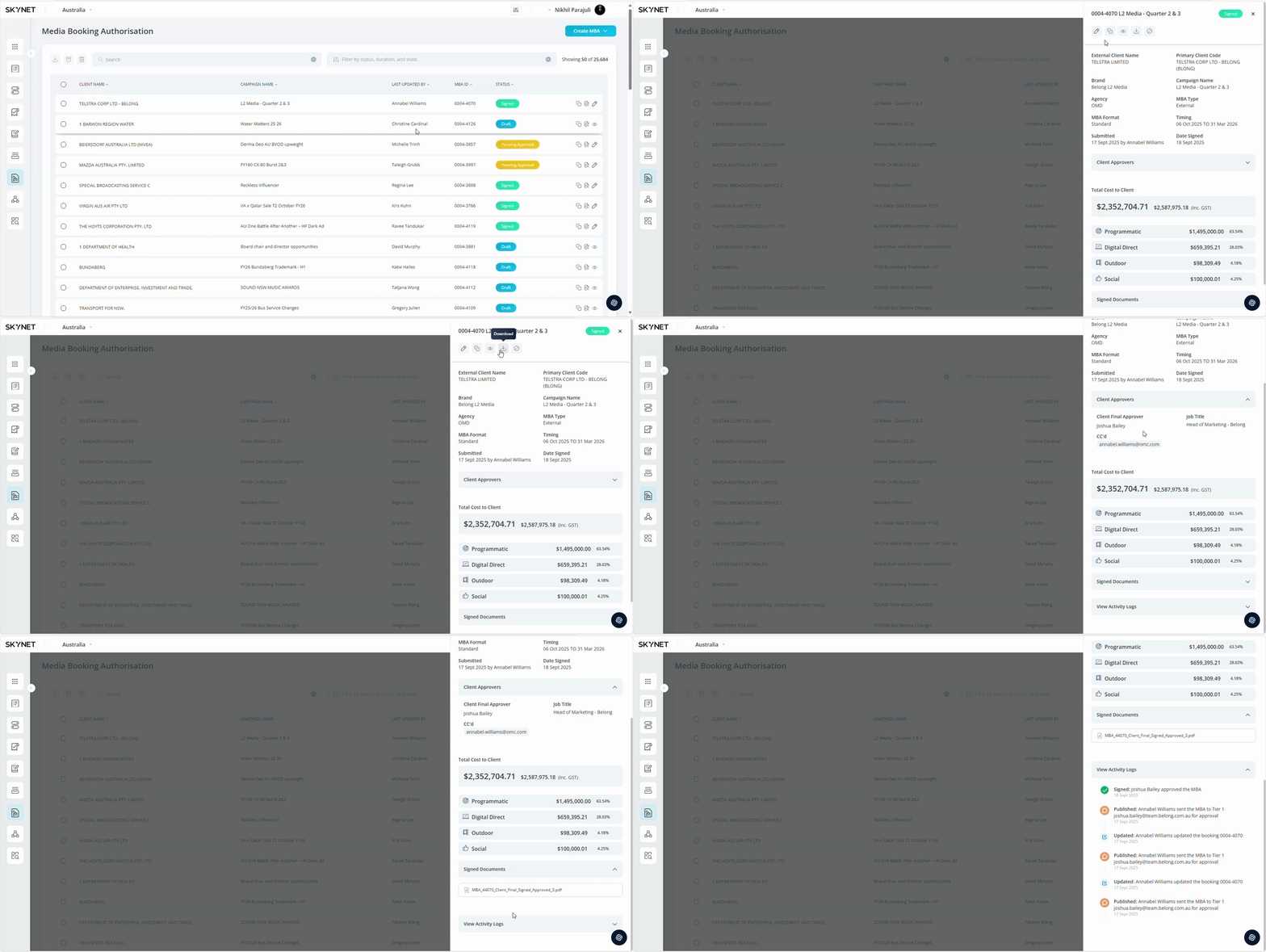
At the end of each row are action buttons specific to the MBA you’re looking to access. This is where a user can access existing MBA for editing or monitoring. Starting left to right, the 3 action buttons are Duplicate, Overview & Edit.
The Duplicate function will take the existing targeting applied to an MBA and create a copy. This will open in the edit view, and will be in draft status. Any existing history from the original MBA will not be applied the duplicate MBA.
The Overview function gives user a summary snapshot of the MBA. On selecting, a sidebar will open containing a campaign summary, cost breakdown, approver details and any attachment documents. This allows a user to see top-level details without the need of entering the edit function. To see action icon definitions, please go to ‘Create MBA’ page.
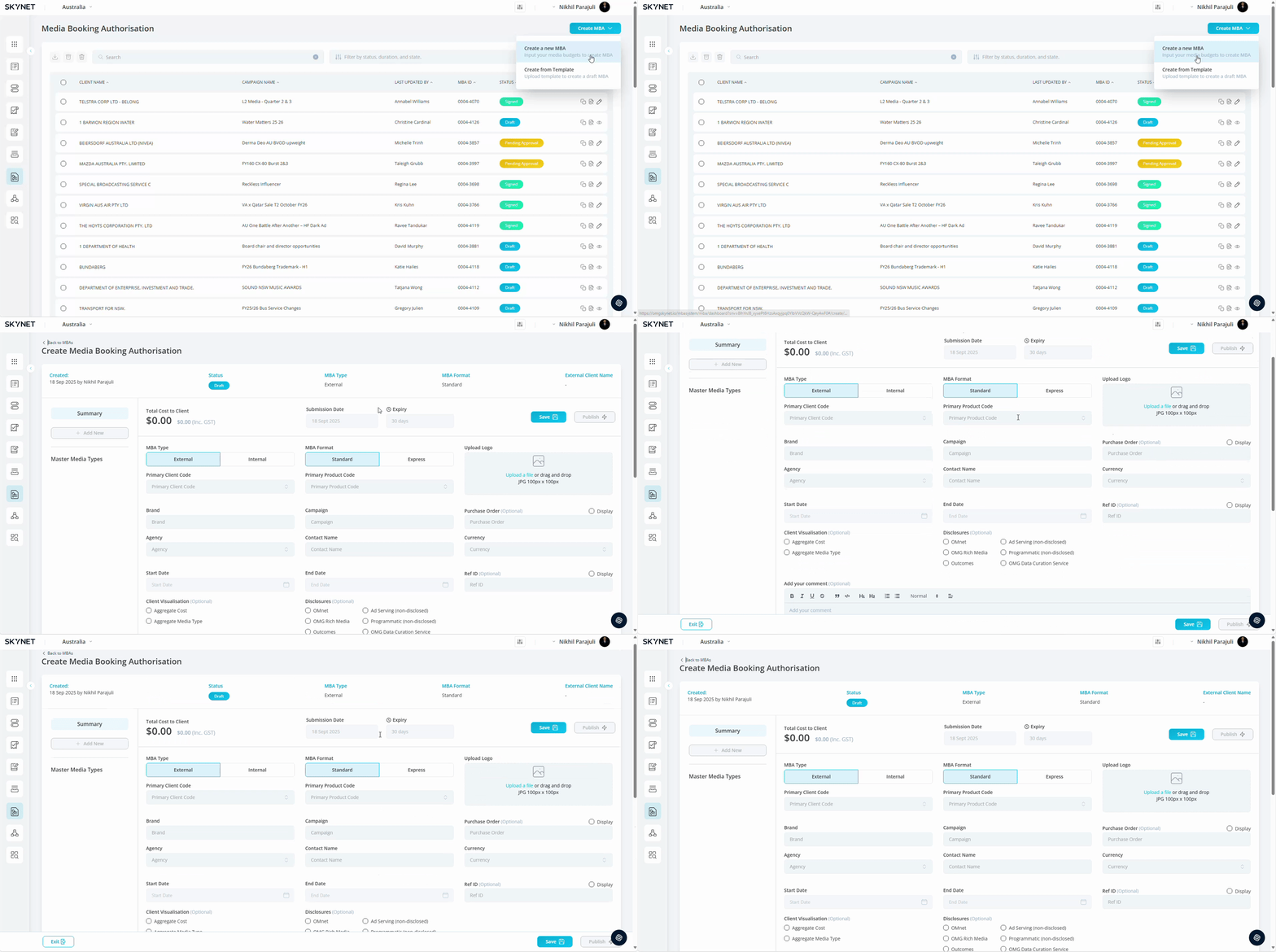
In the upper right section of the listing page is a ‘Create MBA’ button. This will take you to the create function to build your MBA.
Summary Page
Whether in create or edit mode, the user will be directed to the Summary page. This section of the MBA houses client campaign details, media breakdown, and MBA settings ready to be published. In this section a user can perform all actions required to obtain client approval.
The MBA header is auto-populated with Creator & Timestamp, Status, MBA Type, MBA Format, and External Client Name based on user selections. The external client name is the billing entity associated with the client codes selected when building the MBA.
The Total Cost Client reflects the sum all media selected in the media breakdown. This total is reflected exclusive and inclusive of GST.
Situated on the right of the summary page is the activity log and action menu. The 3 dots in the upper right section of the summary page represent the main MBA action menu. Full list of actions:
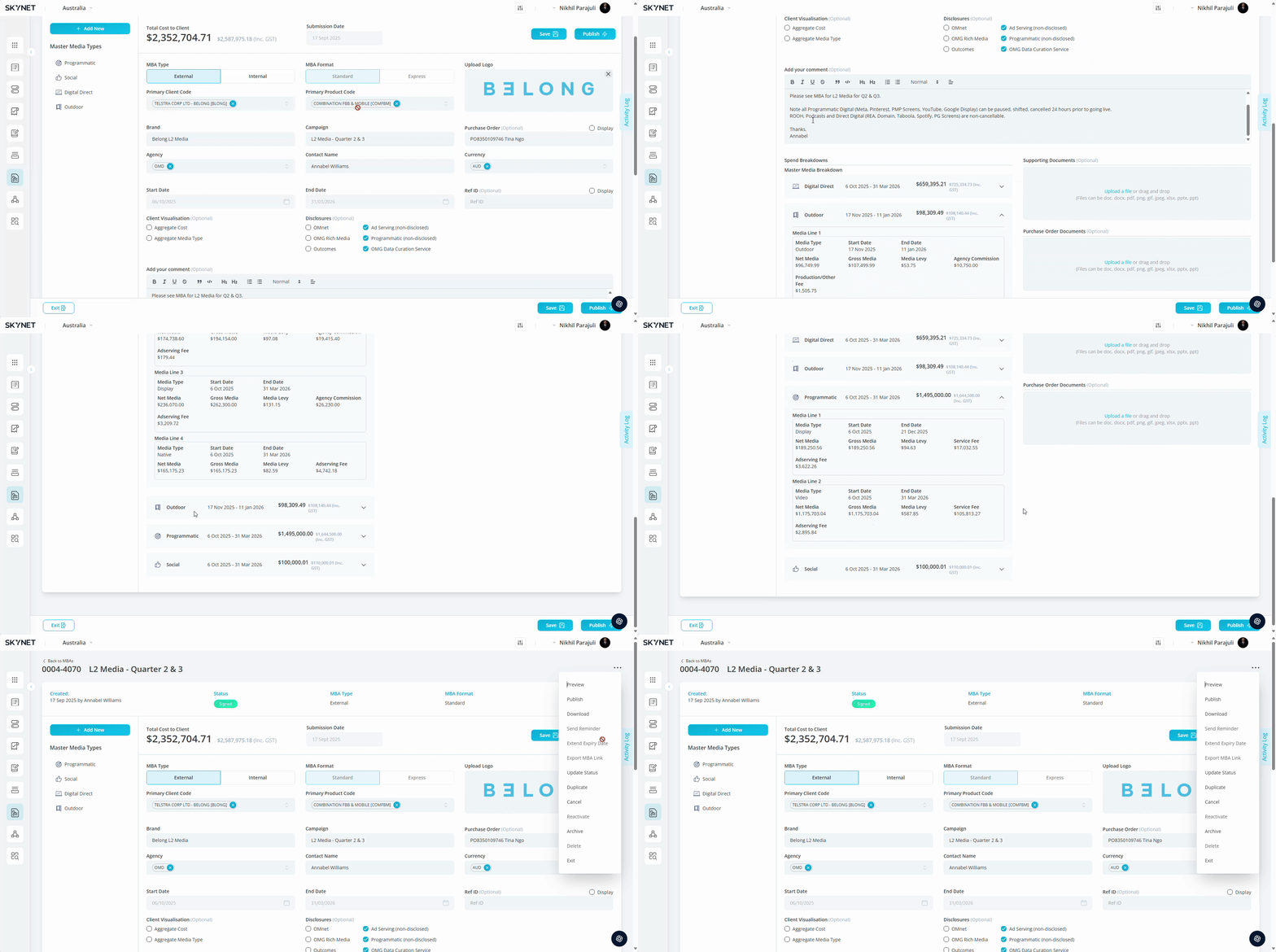
| Action | Definition |
|---|---|
| Preview | Preview MBA in desktop browser |
| Publish | Send to client |
| Download | Download PDF version of MBA |
| Send Reminder | Send reminder email to client. Status will be unaffected |
| Extend Expiry Date | Extend the approval expiry date |
| Export MBA Link | Export MBA link to email to client directly. |
| Update Status | Manually update status for approvals happening outside of the portal |
| Duplicate | Make a copy of the MBA in draft mode |
| Cancel | Cancel MBA. |
| Reactivate | Revert MBA to query status. Only available for Cancelled MBAs |
| Archive | Archive MBA. Only available for Signed & Cancelled MBAs |
| Delete | Delete MBA. Only available for draft MBAs |
Clicking the blue Activity tab will activate a side bar that outlines all status updates tied to both agency user and client interactions, along with a timestamp. Below the header is the main body of the campaign summary page containing the fields required to build and save and MBA. Full list of fields:
| Field | Definition |
|---|---|
| MBA Type | Internal or External. Type of MBA created |
| MBA Format | Standard or Express. Format of MBA created |
| Primary Client Code | Primary Client Code used for invoicing |
| Primary Product Code (Optional) | Primary Product Code used for invoicing |
| Logo | Logo to be visible on MBA |
| Brand | Brand or Product to be visible on MBA |
| Campaign | Campaign name |
| Purchase Order (Optional) | Purchase Order (PO) used for invoicing |
| Agency | Agency name |
| Contact Name | Agency contact name |
| Currency | Currency used for invoicing |
| Plan ID (Optional) | Media plan ID |
For Standard MBA, Start Date and End Date will auto populate based on media selections and for Express MBA, Start Date and End Date needs to be selected from date range.
Below the campaign inputs a user can customise the visualisation of the MBA received by the client. Both are option fields and can be applied simultaneously. If left unticked, the MBA will breakdown media and costs on the client MBA.
| Client Visualisation | Definition |
|---|---|
| Aggregate Cost | Aggregates all costs into Total Cost To Client at media type level |
| Aggregate Media Type | Aggregates all media types into Master Media Type level |
Additional disclosures can be added the OMG terms and conditions. Client identified as OMnet within client settings will have the disclosure automatically appended. A user can remove selection in edit/create mode. Additional disclosure options: OMnet, OMG Rich media, Ad Serving (non-disclosed), Programmatic (non-disclosed)
Additional commentary can be added within the comment box. Layout customisation is available using the options within the header.
Supporting documents can be added by clicking within the rectangle and selecting a save file, or drag & drop an fileinto the rectangle. This will be an external facing document sent alongside your MBA. Formats supported: xlxs, pdf, doc, pptx.
Purchase Order (PO) documents can be added by clicking within the rectangle and selecting a save file or drag & drop an fileinto the rectangle. This will be an internal document housed alongside the MBA and will not be sent to the client. Attaching documents will not affect MBA status. Formats supported: xlxs, pdf, doc, pptx
Media Breakdown
Once a user has entered all mandatory requirements in the summary section, the media summary options will become active. Media types are selected by clicking the Add New button and will be populate as list underneath as selected.
Clicking on the master media type will open the media line builder. Within this section can apply run media types, dates, budgets, fees and descriptions to outline your media plan. Your selections will populate the media breakdown summary on the summary page.