
Create MBA + Pegasus Plans (NZ only)
- Applicable to New Zealand Only -
The create function for MBAs in Skynet for New Zealand supports two additional features to allow "Creation of New Pegasus Media Plan Codes" and/or the ability to "Assign Existing Pegasus Media Plans". The following article gives you an understanding on how we made this work using Pegasus Database & API integration to the existing Create MBA workflow.
Create New Pegasus Media Plan in MBA Tool (Summary Level)
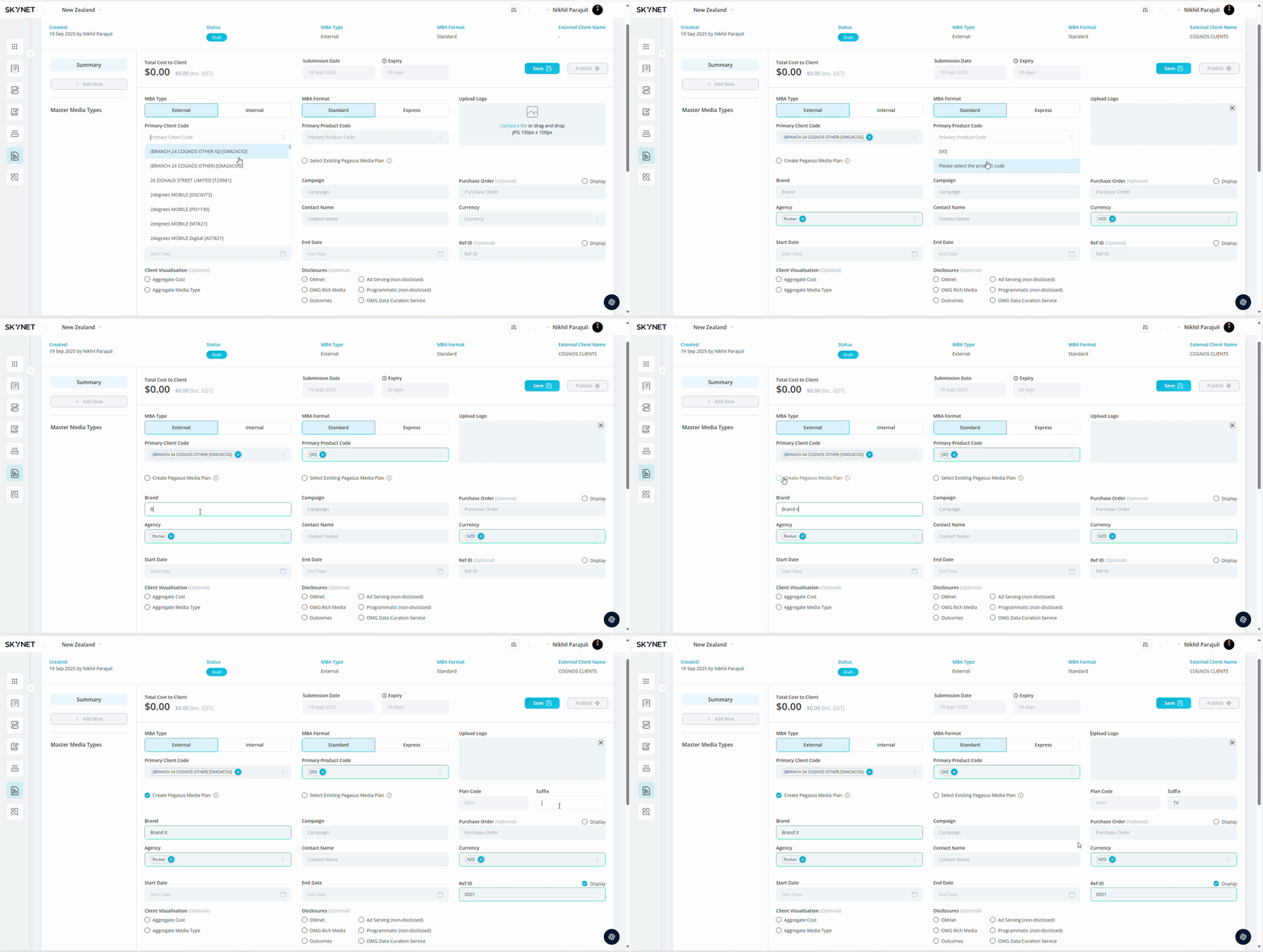
To create new media plan # in MBA Tool, follow below steps at the Summary level:
- Select Primary Client Code. Use the dropdown or search feature
- Select Primary Product Code (Optional). Use the dropdown or search feature
- Click Create Pegasus Media Plan tickbox. Under Primary Client Code
- Upon selection, it will auto create the next available plan code (e.g. Plan 1000, 1001)
- Apply 2-alpha SUFFIX as optional once plan # appears (e.g. Plan 1000TV, 1000PR)
- Ensure all fields are filled (Campaign, Start/End Dates, Product Code & Brand)
- Press Save. The new plan code will be created in Pegasus & assigned to your MBA
Assign Existing Pegasus Media Plan in MBA Tool (Summary Level)
To assign existing media plan # in MBA Tool, follow below steps at the Summary level:
- Select Primary Client Code. Use the dropdown or search feature
- Select Primary Product Code (Optional). Use the dropdown or search feature
- Click Select Existing Pegasus Media Plan tickbox. Under the Primary Product Code
- Upon selection, it will list all available plan codes for the specific client
- Select Media Plan. Ensure all fields are filled (Campaign, Start/End Dates, Product Code & Brand)
- Press Save. The existing plan code will be assigned to your MBA
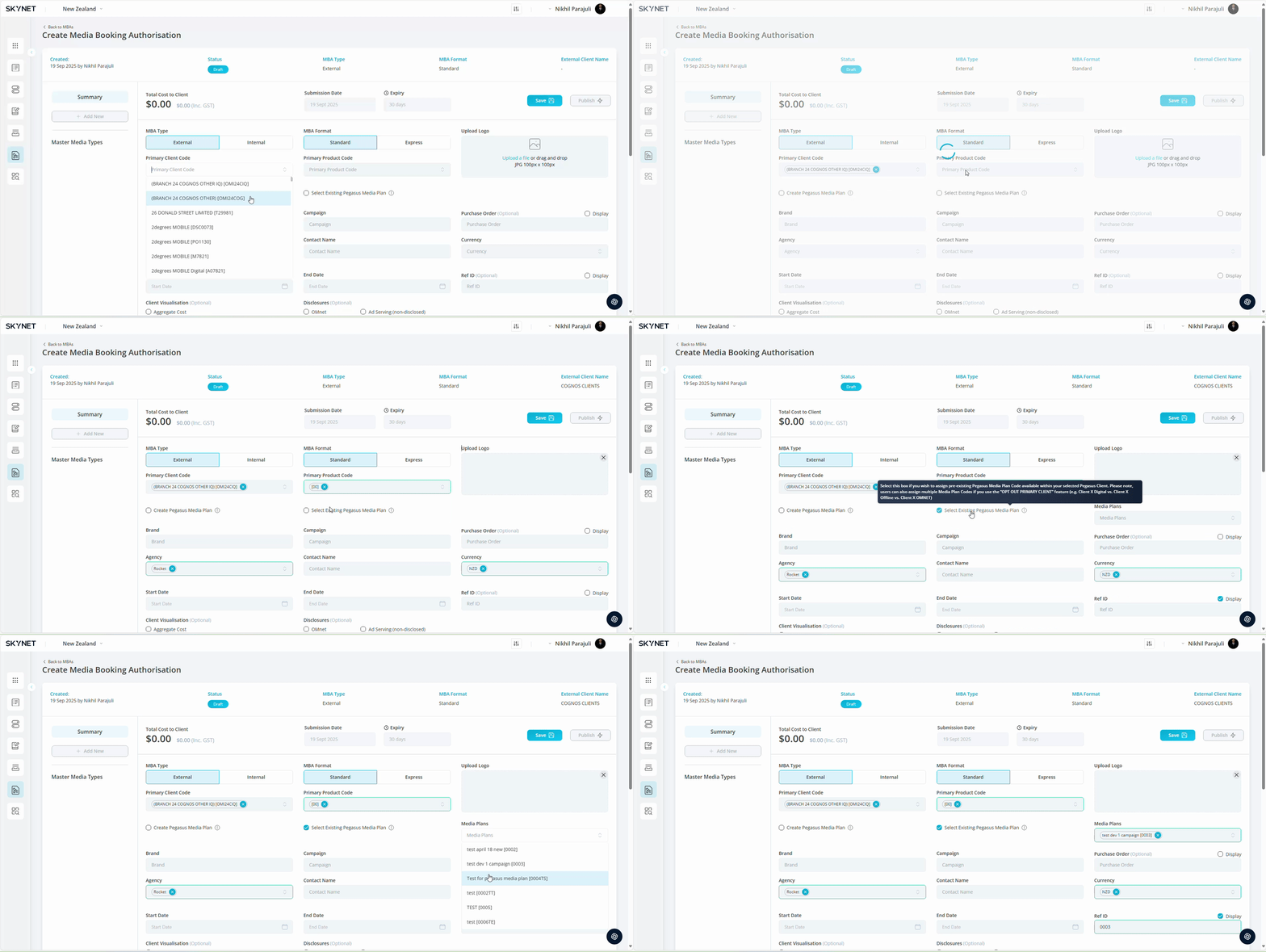
*Reminder: At the Media Type or Line Level, by selecting the lock icon at the Primary Client Level – you can assign a different client, product, and Media Plan where required
Assign Existing Pegasus Media Plan in MBA Tool (Media Line Level)
To assign existing media plan # in MBA Tool, follow below steps at the Line level:
- Navigate to the Media Line, using the Master Media Type navigation on the left
- Click on the lock icon, this is previously known as opt-out primary client
- Upon selecting the icon, it will allow you to lock or unlock the Primary Client Code
- This functionality enables the Select Existing Pegasus Media Plans feature at the Media Line Level
- Upon selection, it will list all available plan codes for the specific client
- Select Media Plan. Ensure all fields are filled (Media Type, Start/End Dates, Net Media, Gross Cost, Total CTC etc.)
- Press Save. The existing plan code will be assigned to your MBA