
Create MBA
The create function for MBAs can be described as a 2-part process. The first is to populate your campaign summary. This is the top level overview and includes your client and campaign data, along with how you want to present your MBA to clients.
Add Campaign Summary
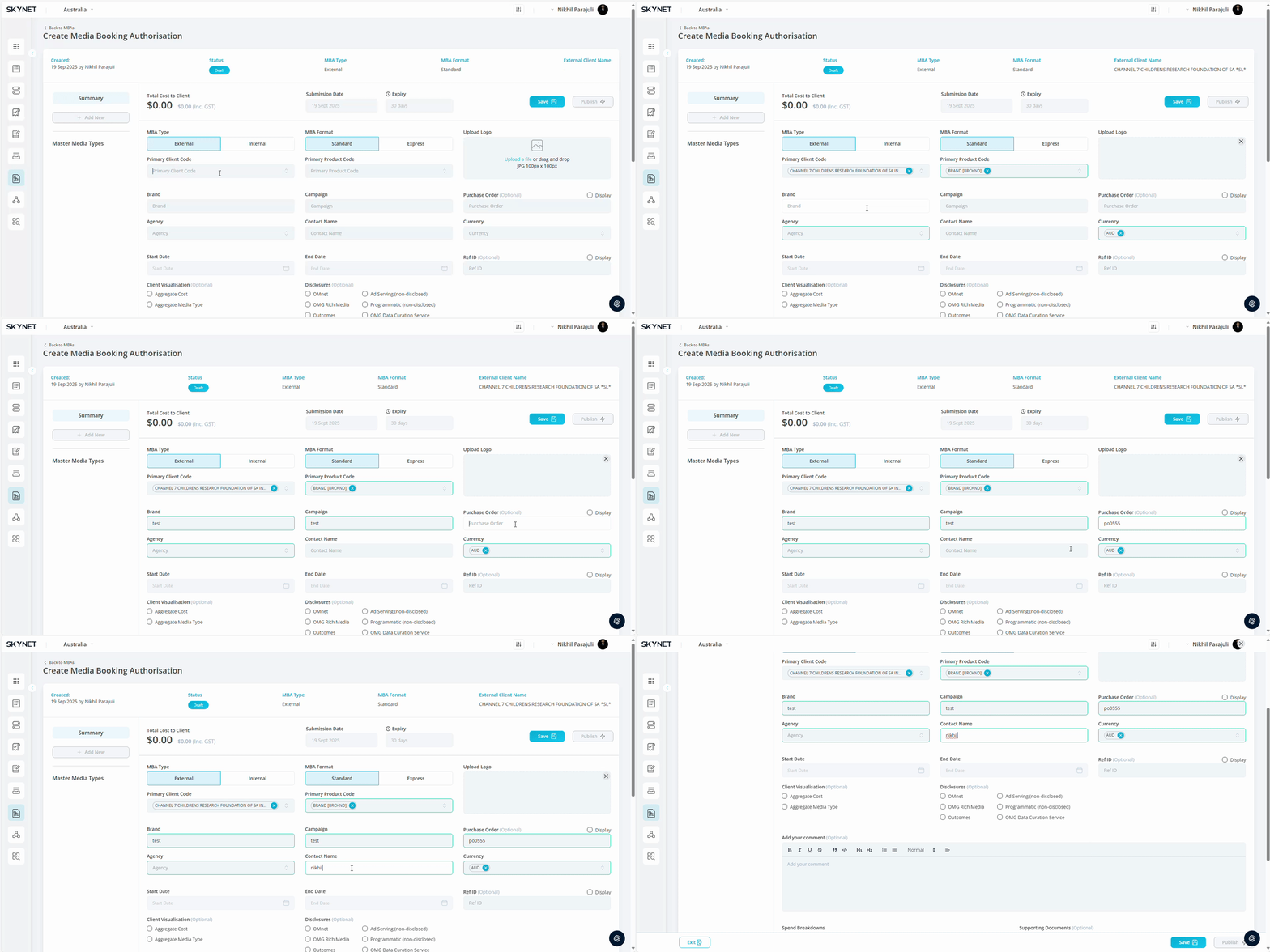
- Select MBA Type. This will be defaulted to External on new MBAs.
| MBA Type | Definition |
| External | Designed to be sent to an external entity for approval e.g. agency client |
| Internal | Designed for internal record keeping. To be used when a 3P process is mandated by client |
- Select MBA Format. This will be defaulted to Standard on new MBAs.
| MBA Format | Definition |
| Standard | Requires media breakdown to be added to publish |
| Express | Requires total cost to client budget & support document to approve* |
*Use of Express MBAs remove ability to report & forecast at media type level
- Upload Logo. Add your client logo by clicking within the rectangle and selecting a save image, or drag & drop an image into the rectangle. Your successfully uploaded image will display on your client MBA. 100px x 100px is optimal size.
- Select Primary Client Code. Select from dropdown list. List options will be limited to client codes you can access.
- Select Primary Product Code. Select from dropdown list. List options will be limited to the product codes associated with the client code. This field is optional.
- Add Brand. Add the brand or product the campaign is advertising. This field is visible on client MBA. Examples: McDonald's, Pepsi Max, etc.
- Add Campaign. Add the campaign name. This field is visible on client MBA.
- Add Purchase Order. Add the campaign purchase order (PO). This field isn’t visible on client MBA. Assinging a PO at summary level will assign across all media lines. PO can be applied at media line level. Updating this field will not trigger a status change. Field is optional.
- Select Agency. Select from dropdown list. Field will be auto populated from client selection.
- Add Contact Name. Add the agency contact overseeing the MBA approval. Field will be auto populated with the name of the user creating the MBA.
- Select Currency. Select from dropdown list. Field will be auto populated from client selection.
Start Date & End Date fields will be disabled as these will auto populate based on the media inputs in part 2 of the MBA build. This will reflect the earliest start date, and latest end date.
- Add Plan ID. Add the corresponding media plan ID. Field is optional.
- Select Visualisation. Select the visualisation you require for your client. Both options can be applied simultaneously. By default, no aggregation is applied. Field is optional.
| Client Visualisation | Definition |
| Aggregate Cost | Aggregates all costs into Total Cost To Client at media type level |
| Aggregate Media Type | Aggregates all media types into Master Media Type level |
- Select Disclosures. Select the additional disclosures you want applied to your MBA. All MBAs will include OMG’s disclosure terms by default.
Additional disclosure options: OMnet, OMG Rich media, Ad Serving (non-disclosed), Programmatic (non-disclosed)
- Add Additional Commentary. Add additional commentary within the comment box. Layout customisation is available using the options within the header.
- Add Supporting Documents. Add supporting documents by clicking within the rectangle and selecting a save image, or drag & drop an image into the rectangle.. This will be an external facing document sent alongside your MBA. This is an optional field. Formats supported: xlxs, pdf, doc, pptx
- Add Purchase Order Documents. Add purchase order documents by clicking within the rectangle and selecting a save image, or drag & drop an image into the rectangle.. This will be an internal document received from the client to be housed alongside MBA. This is an optional field. Attaching documents will not affect MBA status. Formats supported: xlxs, pdf, doc, pptx
- Press Save.
Add Media Lines
The second part of the MBA creation process is to add your media line items. This reflects the timings, budgets and media channels approved within your media plan.
- Add Master Media Type. Select the Master Media Type from the left panel you want to add to your MBA. You can choose multiple Master Media Types before populating your media line items.
- Select Master Media Type. Select from your listed Master Media Types, to open the media line-item builder.
- Select Media Type. Select from list. Options will be limited to media types assigned to that master media type. Selecting Undefined will leave field blank on the MBA.
Primary Client & Primary Product. These will be auto populated with the codes selected in the MBA summary. To update, click the lock and select from the dropdown list. Options will be limited to the client codes associated with primary client.
- Select Start Date & End Date. Select from date range.
- Select Media Input. Add the input field you want to use to build you line item. This selection enabled the field to be populated.
- Add Budget. Add dollar amount into the field.
- Add Commission Rebate (%). Add the percentage rebate the client is returned from agency commission as per their contract. This will be auto populated where possible from client code settings.
- Add Purchase Order. Add the campaign purchase order (PO). This field isn’t visible on client MBA. Updating this field will not trigger a status change. Field is optional. This field will be disabled is PO has been applied at summary level.
- Add Agency Commission. Add agency commission applicable to the media type. This is auto populated from client code settings. A user can exempt agency commission be selecting the tick box. Selecting will disable the Commission Rebate (%) and Agency Commission fields.
- Add Media Levy. Add Media Levy applicable to the media type. This is auto populated from client code settings.
- Add Other Fees. Add any other applicable fees. Fee’s can be added as a flat fee, % of net media, or % gross media.
- Add External Description. Add additional commentary within the comment box. Layout customisation is available using the options within the header. This will be visible on externally to client approver.
- Add Internal Description. Add additional commentary within the comment box. Layout customisation is available using the options within the header. This internal description will not be visible externally.
- Add Media Line. Add additional media line items by selecting from the Master Media Type header, or the footer.
- Duplicate Media Line. Add additional media line items by duplicating an existing media line item from the action dropdown located on the media type summary bar.
- Delete Media Line. Remove media line items by deleting an existing media line item from the action dropdown located on the media type summary bar.
- Disable Media Line. Disabling a media line will remove the media from showing in your campaign summary and the client view of your MBA. This media line can be enabled at any point and will be visible again for use. This function caters for when only a specific section of an MBA can be approved, removing the need for a user to delete a media line and re add at a alter date.
- Click Save.
- Select Master Media Type. Select from your listed Master Media Types, to open the media line-item builder to add remaining media. Repeat process.
- Click Save.