Request Access for Advertisers/Application on Skynet
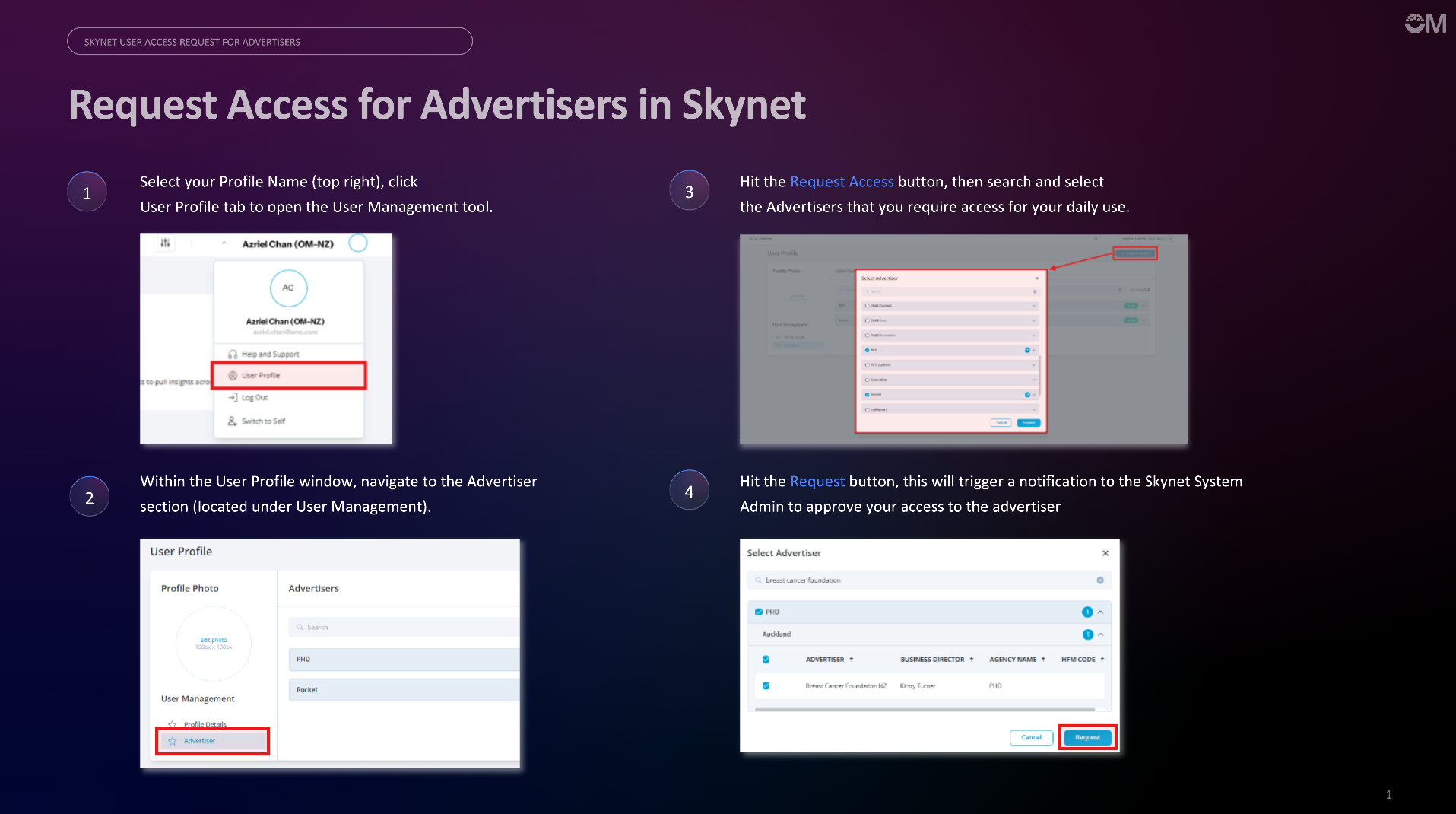
Follow the below steps to gain Advertisers Access on Skynet;
Overview
If you need access to advertisers that are not currently assigned to your account, you can submit an advertiser access request from the same User Profile page.
- Navigate to User Profile.
- Under User Management, click Advertiser.
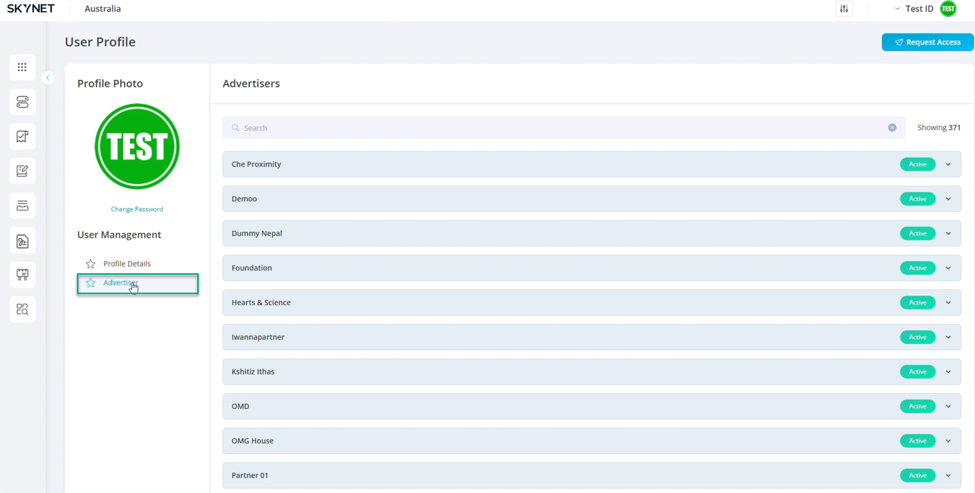
- Click Request Access.
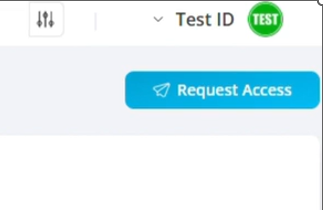
A pop-up window will open displaying the advertisers that are available to request.
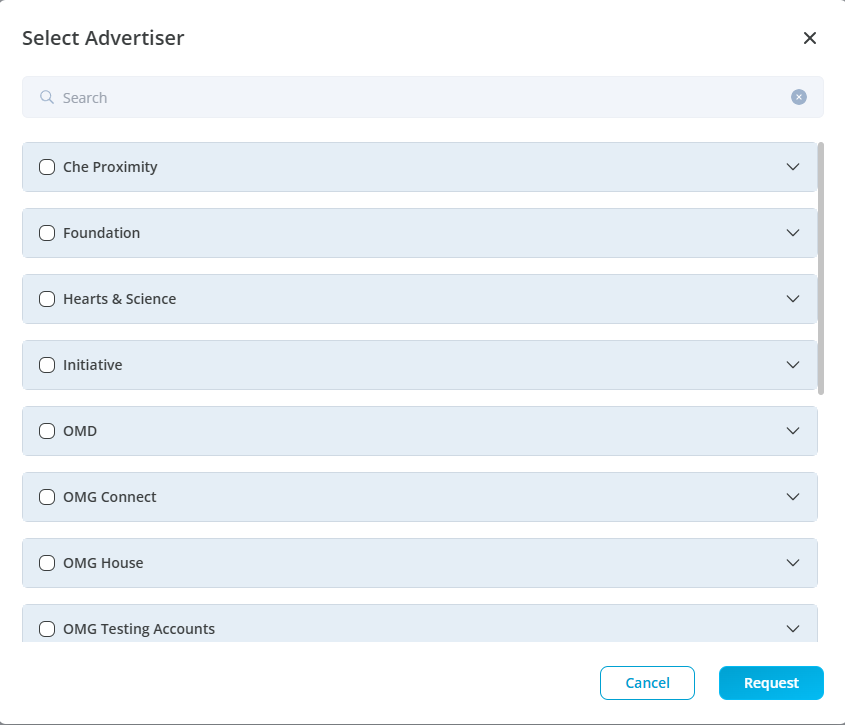
Select Advertisers
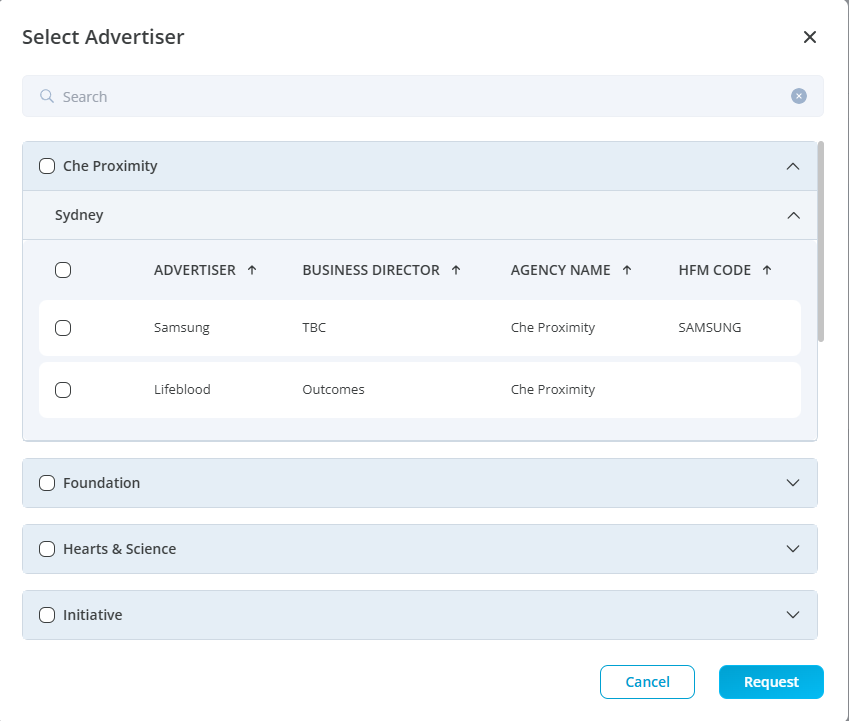
- Expand an Agency to view the advertisers associated with it.
- Select one or more advertisers by checking the relevant boxes.
- Once you've finished making your selection, click Request.
A confirmation message will appear in the top-right corner of the page, indicating that your request has been submitted successfully.
What Happens Next?
Once your request has been submitted:
- The request is sent to the Skynet administrator for approval.
- You'll receive an email notification once the request has been approved.
- After approval, the requested advertiser(s) will be available in your account.
Note: Approval is required before access is granted.
---------------------------------------------------------------------------------------------------
Requesting Application Access
Overview
If you need access to additional applications within Skynet, you can submit a request directly from your User Profile. Once submitted, your request is reviewed by a Skynet administrator. You'll receive an email notification after it has been approved.
Requesting Application Access
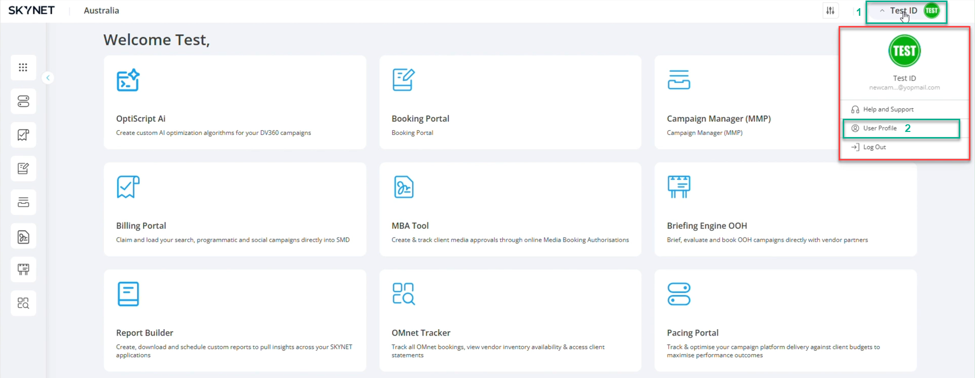
Navigate to Your User Profile
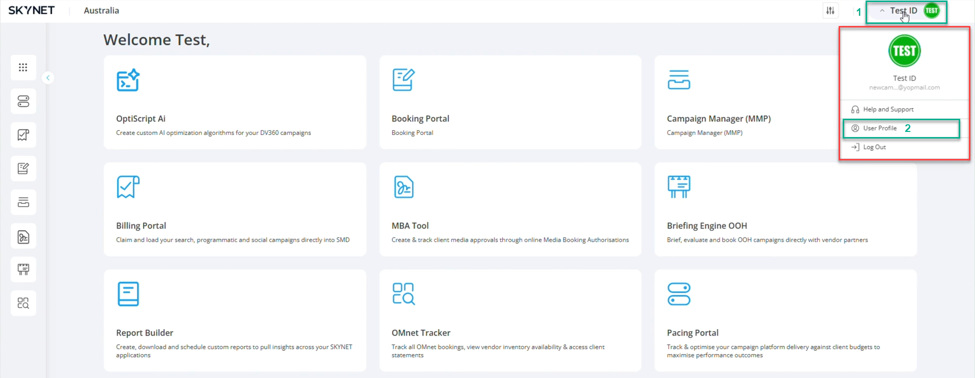
- From the Skynet dashboard, click your profile picture in the top-right corner.
- Select User Profile from the dropdown menu.
Submit an Application Request
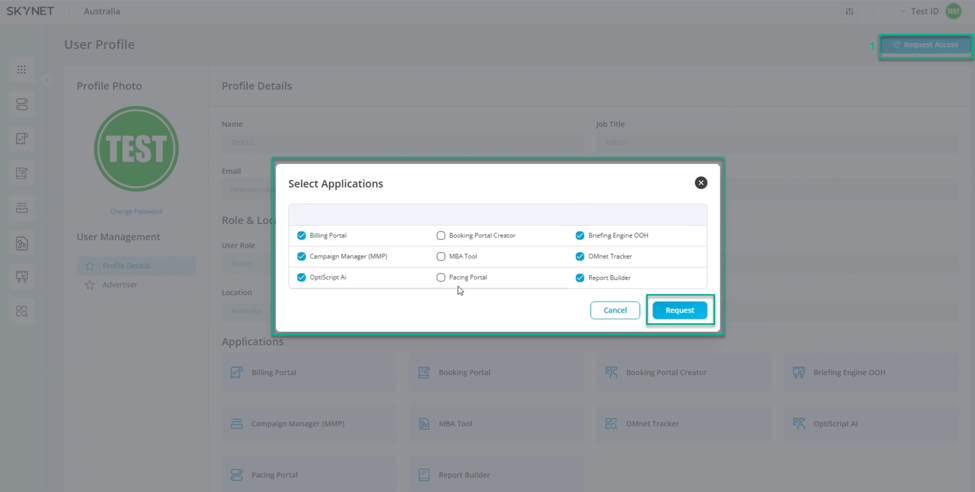
- On the User Profile page, click Request Access in the top-right corner.
- A pop-up window will display the applications available for request.
- Select the application(s) you require by ticking the corresponding checkbox.
- Click Request to submit your request.